Workflow Management
In this chapter we will discuss how to duplicate and edit a workflow, and the versioning logic.
Workflow Actions
Duplicate Workflow
To duplicate the workflow, in the workflows list hover over the three dots on the right of the field and click Duplicate. Exactly the same workflow will be created, only the reference number will be different and it will have the Draft status.

Edit Workflow
To edit the workflow, it must have the Draft status. Hover over the three dots on the right of the field and click Edit.

Delete Workflow
To delete the workflow, it must have the Draft status. Hover over the three dots on the right of the field and click Remove.

Workflow Details
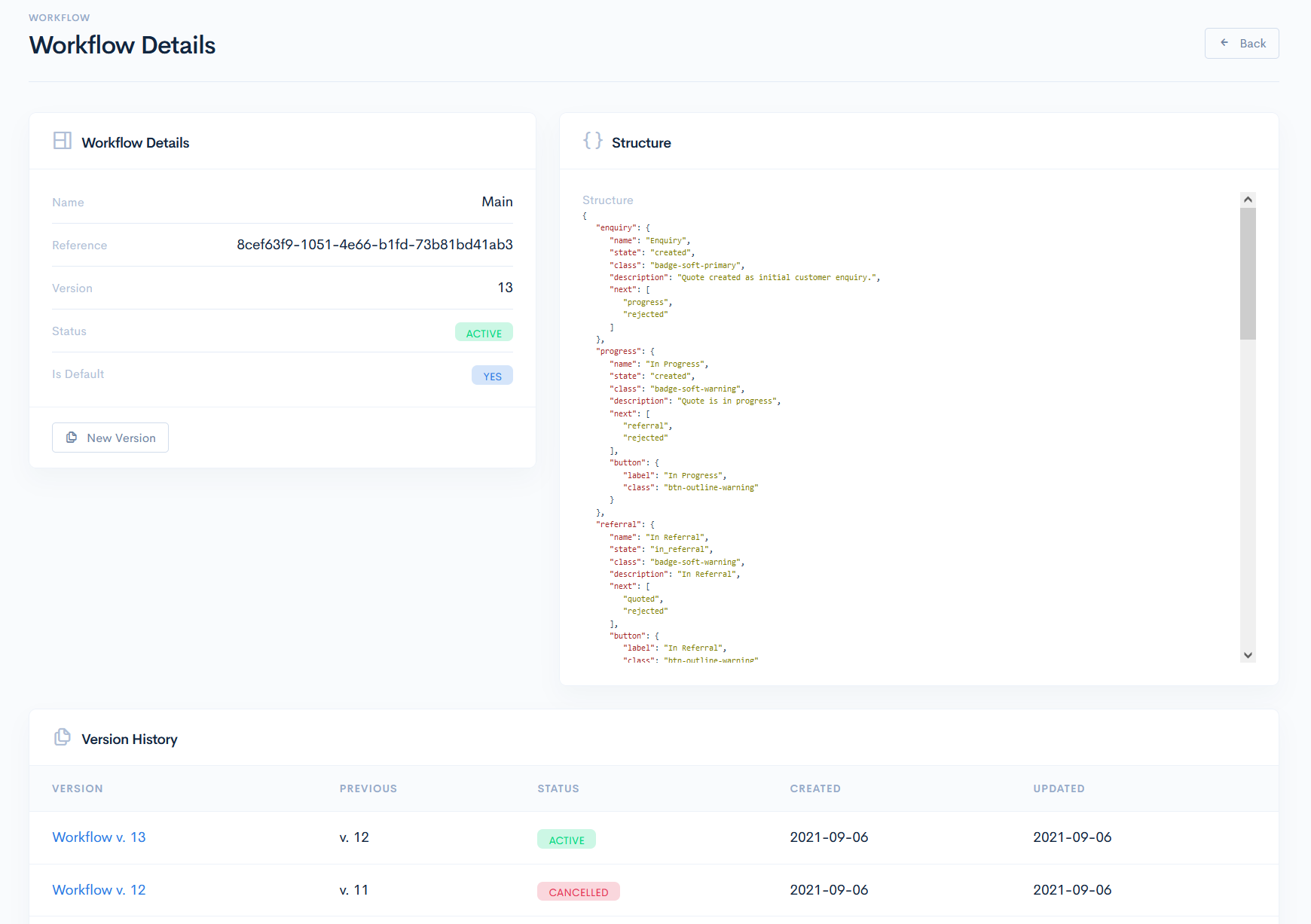
To open the Workflow Details page, click on the workflow name. Here you will find the following sections:
- Workflow Details - shows the main details of the workflow.
If the workflow status is Draft, then by clicking the Publish button, the workflow will gain the Active status. By clicking the Cancel button, the workflow will be deleted. If the status is Active, then by clicking the New Version button, the workflow will receive a new incremented version and the Draft status. - Structure - shows the entered workflow structure.
- Version History - shows the current and previous workflow versions. New workflow version will be available for use only when it receives the Active status. All previous versions have the Canceled statuses.
{info.fa-info-circle} All the quotes created from the old workflow version will stay assigned to the old version, but the version itself will be unavailable for modifications.