Overview
In the Calculation Steps tab you define all formulas that are used to calculate parameters. The functions are based on the Expr Language. Furthermore, here you can define formulas which trigger the notification rule to appear in the quote.
Calculation List
To access calculations, click the Calculation Steps tab. There will be a list with functions, each has a ranked number. The function consists of the calculatable parameter, which can be selected from the dropdown list. On the right side from the equals sign a formula should be written. Formulas can be created to suit your needs, or you can select from the already hardcoded functions (e.g. MAX, MIN, AVG, etc.). The full list of them can be found here.
{info.fa-info-circle} It is very important for the calculator to have logical sequence of calculation steps! If there will be a formula with an unknown variable, that is calculated after, then the calculation will fail. This is not applicable for rules.
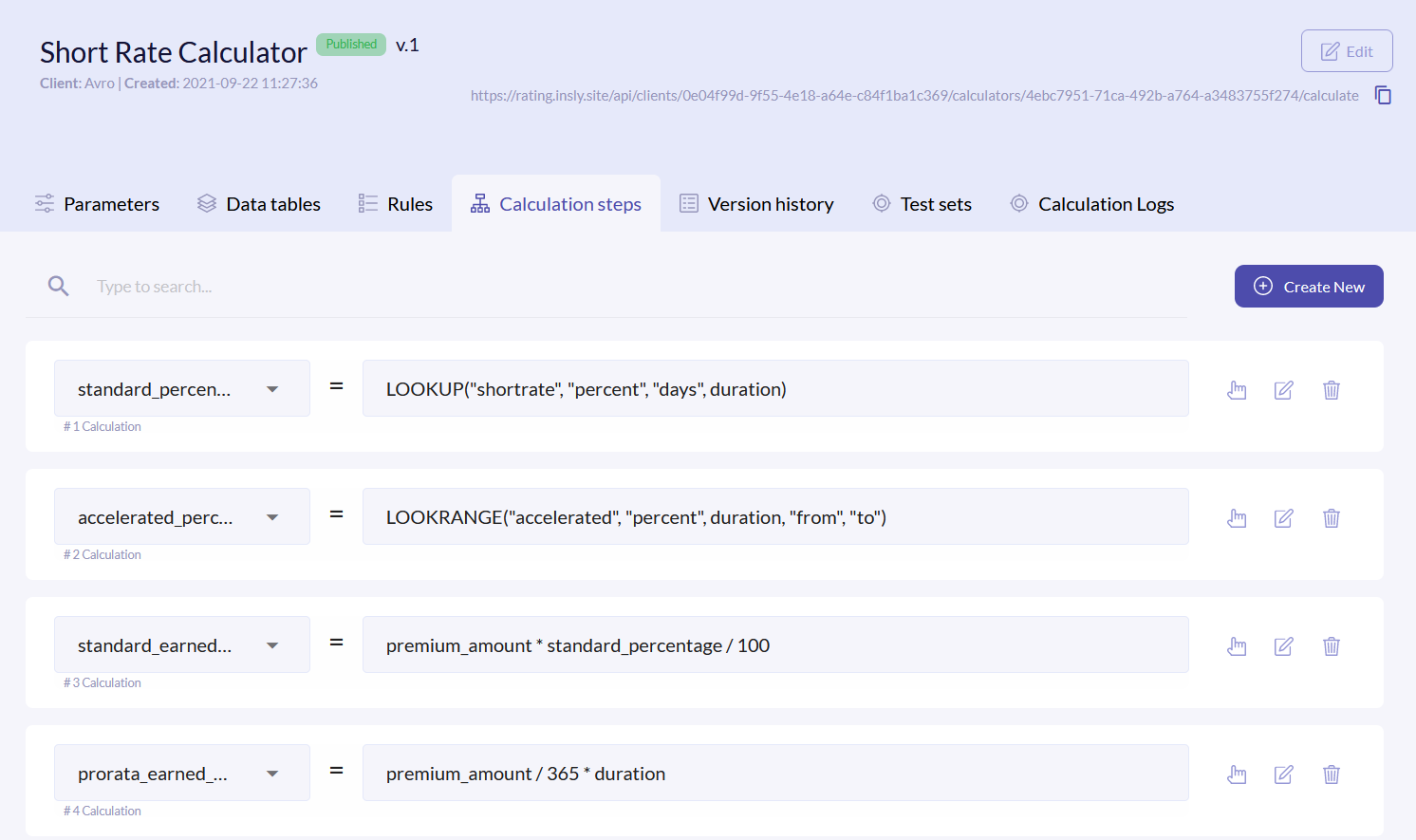
Create New Calculation
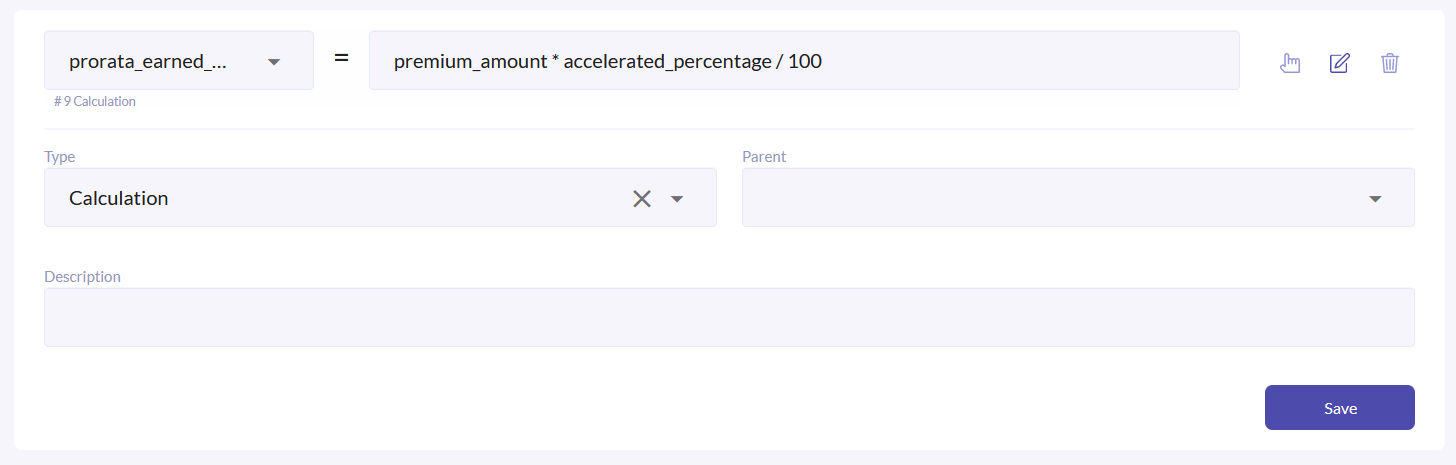
To create a new calculation, click the Create New Calculation button. At the page bottom a new row will appear, where you have to select the parameter to be calculated, enter formula, select parent (if applicable) and what type is it:
- Calculation - calculates the value.
- Rule - defines the event when the rule must be triggered.
- Cycle -
There are some rules on how to formula must be written:
- Variables used in formulas should be letters, also “_” (underscore) is allowed. No uppercase, no special symbols, no starting with number. Examples: country_code, name_of_model.
- Text values must be in quotes. Examples: “John Smith“, “London”.
- Numerical values can be used without modification as a plain number, must not be covered in quotes. Examples: 90, 1122.
- Decimal part of the number must be separated with a dot (“.”), but not with a comma (“,”).
Click Save. The new calculation will appear in the list.
Move/Edit/Delete Calculation
To move the calculation into another row, click and hold the finger icon on the right of the field and drag the row where you need to.
To edit or delete rule, click the or icons on the right of the field respectively.
