Overview
Version history is needed to check how many versions and when they were created, which one is published right now and to download previous and current versions.
Versions List
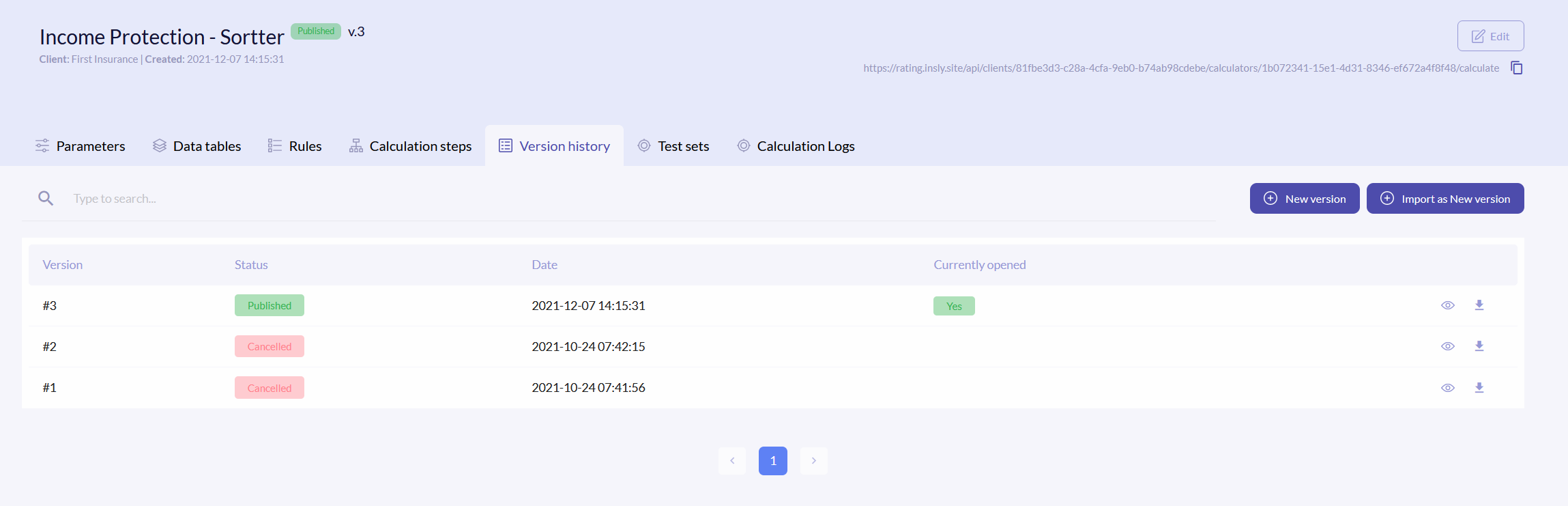
To access versions list, click the Versions history tab. The versions list has the following columns:
| Version | Calculator version. Each new version number is incremented. |
| Status | Calculator status of each version. All previous versions have the status of Canceled. The newly created has a version of Draft and in adjascent it has the Import button, that allows you to import the whole calculator structure. |
| Date | When the version was published or canceled. |
| Currently Opened | Which version you have currently opened in your browser. |
{info.fa-info-circle} You can filter out the list by status.
Create New Version
To create a new calculator version, click the Create New button. In the pop-up window click Yes and the new version with an incremented number and the Draft status will appear in the calculators list. In this case you will have to enter parameters, data tables, etc. in the UI.
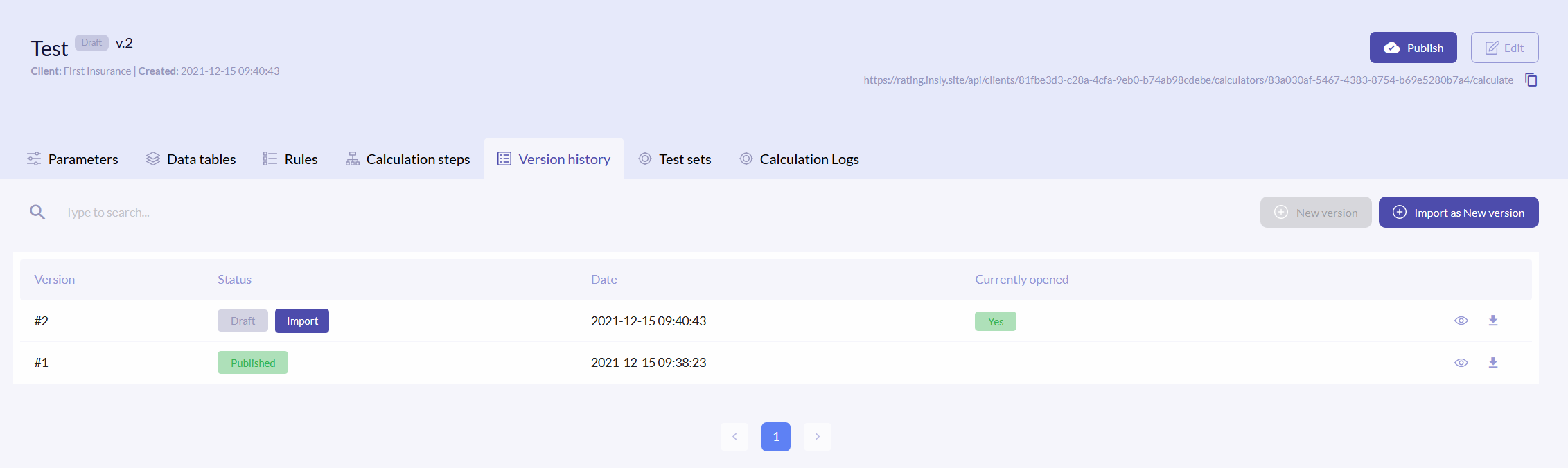
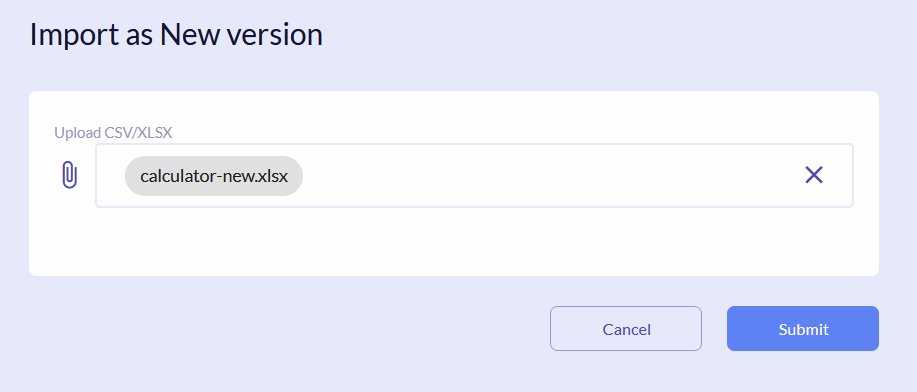
Also you can import an .xlsx file where all the parameters, data tables, rules are already predefined. To do so, click the Import as New version button. Select a file from your PC and click Submit.
{info.fa-info-circle} We strongly recommend you to firstly download some existing calculator package and use it as a template for a new one, otherwise something might not work.
Download Calculator Package
To download the package, click the icon on the right of the field and save it on your pc.

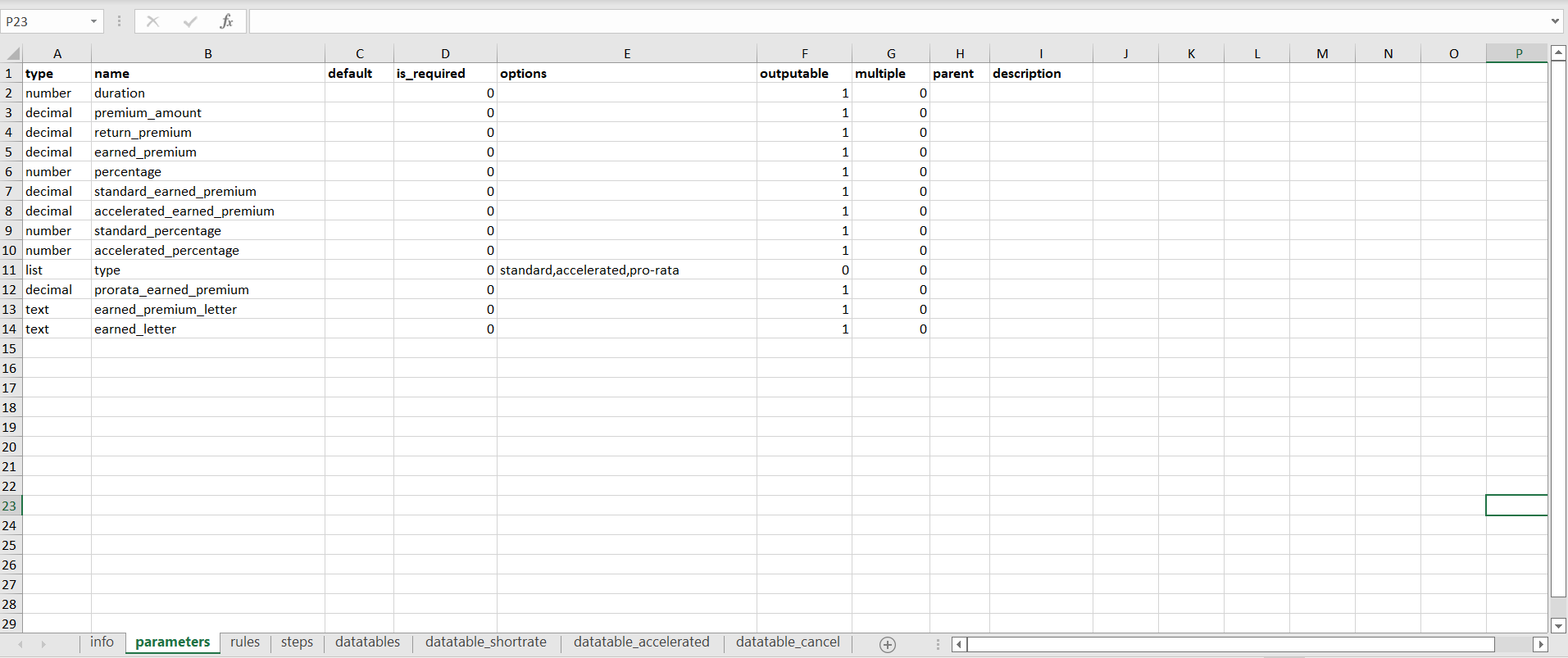
The downloaded file consists of the same tabs and info, as the UI: parameters, rules, steps, datatables and each datatable has its own tab. Please use this form to create new calculators. Instead of "yes", a 1 must be written, and instead of "no" - 0.
{info.fa-info-circle} The info tab should not be changed.