Overview
Counter is used to generate specific format sequence numbers, for invoices (e.g. IN-BR1-007, IN-BR1-008 (where different data is used from system, like broker no in the invoice, or binder UW year in the policy)), quotes, clients, policies and entities. Every counter has a template, that defines how numbers will be counted.
{info.fa-info-circle} You can only create counter templates for quotes and policies (for more information, see Create Schema), they automatically appear in the list. Templates for other modules are hardcoded.
Counters List
To access counters, click Admin on the left sidebar and from the drop down menu select Counters.
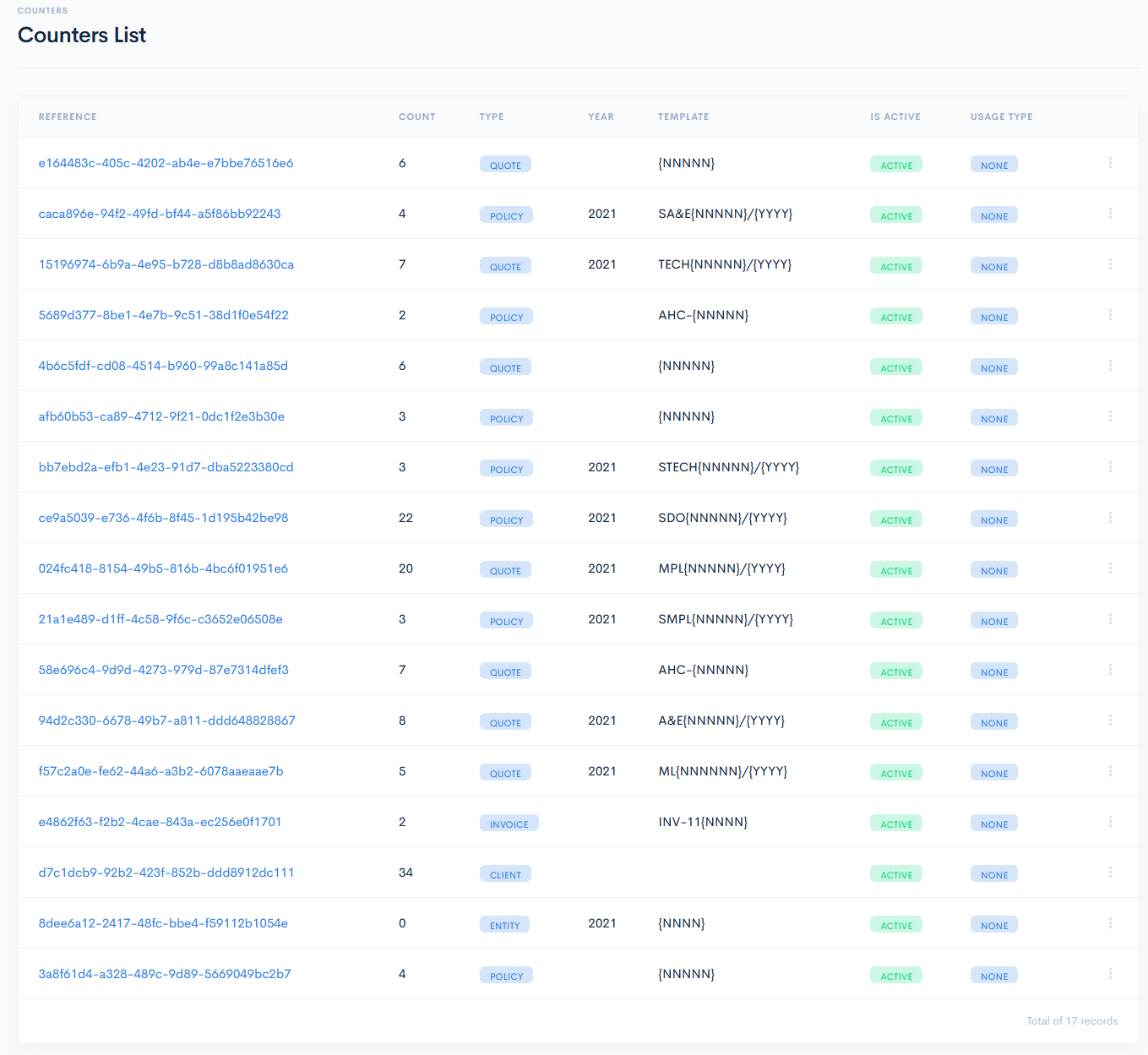
In the new page the Counters List will appear with the following columns:
| Reference | Number, that is automatically generated by the system. |
| Count | From which number the counting will begin. E.g., if the number is 2, then the quote number will be 0003, etc. |
| Type | Type to which the counter belongs. Possible options:
|
| Year | If specified, then counter will reset on the next year. |
| Template | Counter template, that defines how numbers will be counted. |
| Is Active | Status, that shows if the counter can be used or not. Possible options:
|
| Usage Type | Defines the usage of the Reference field. Possible options:
|
Edit Counter
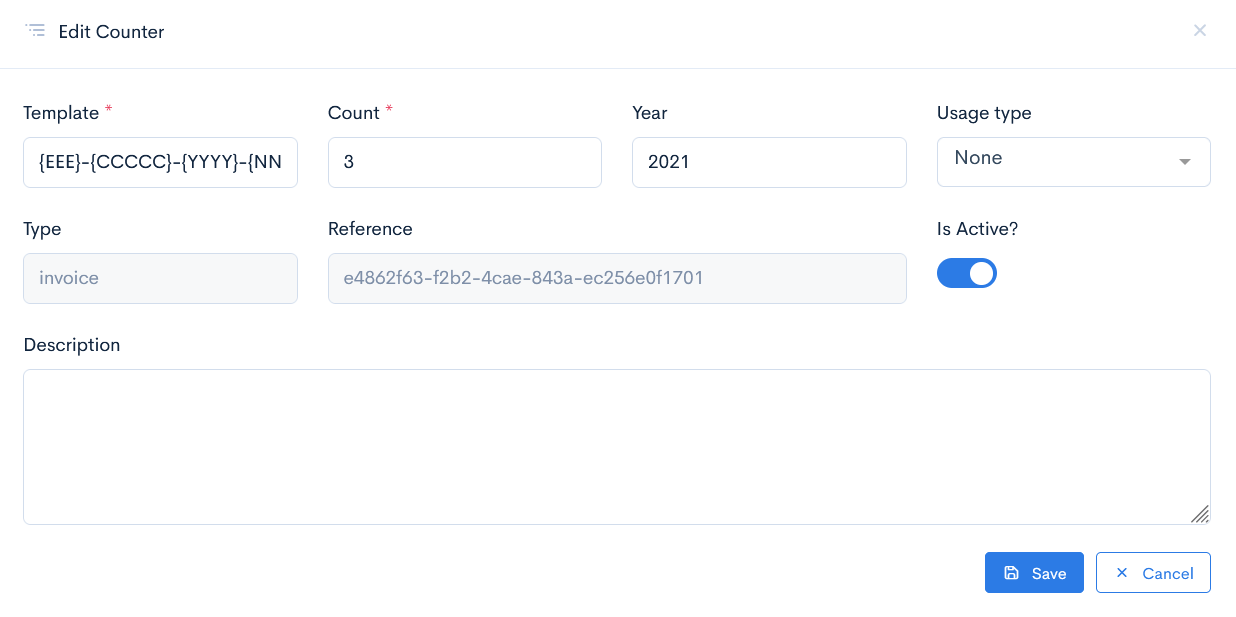
To edit the counter, hover over the three dots on the right of the row and click Edit, or click on the reference number.

In the Edit Counter window edit the available fields. Click Save.
{info.fa-info-circle} You cannot edit the Type and Reference fields in any counter type.
{info.fa-info-circle} It is impossible to delete a counter.