User
System users are individuals accessing the system, where each individual is related to one/specific entity in the system. User have assigned role(s) and set its own status within the system.
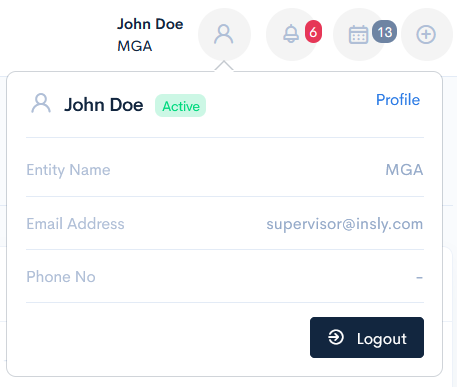
To see information about the current user, hover over the user icon. You will see the status, entity name, email address, and phone number of this user.
If you would like to log out of this application, click the Logout button.
Click Profile to see and edit more information about the user.
User Profile
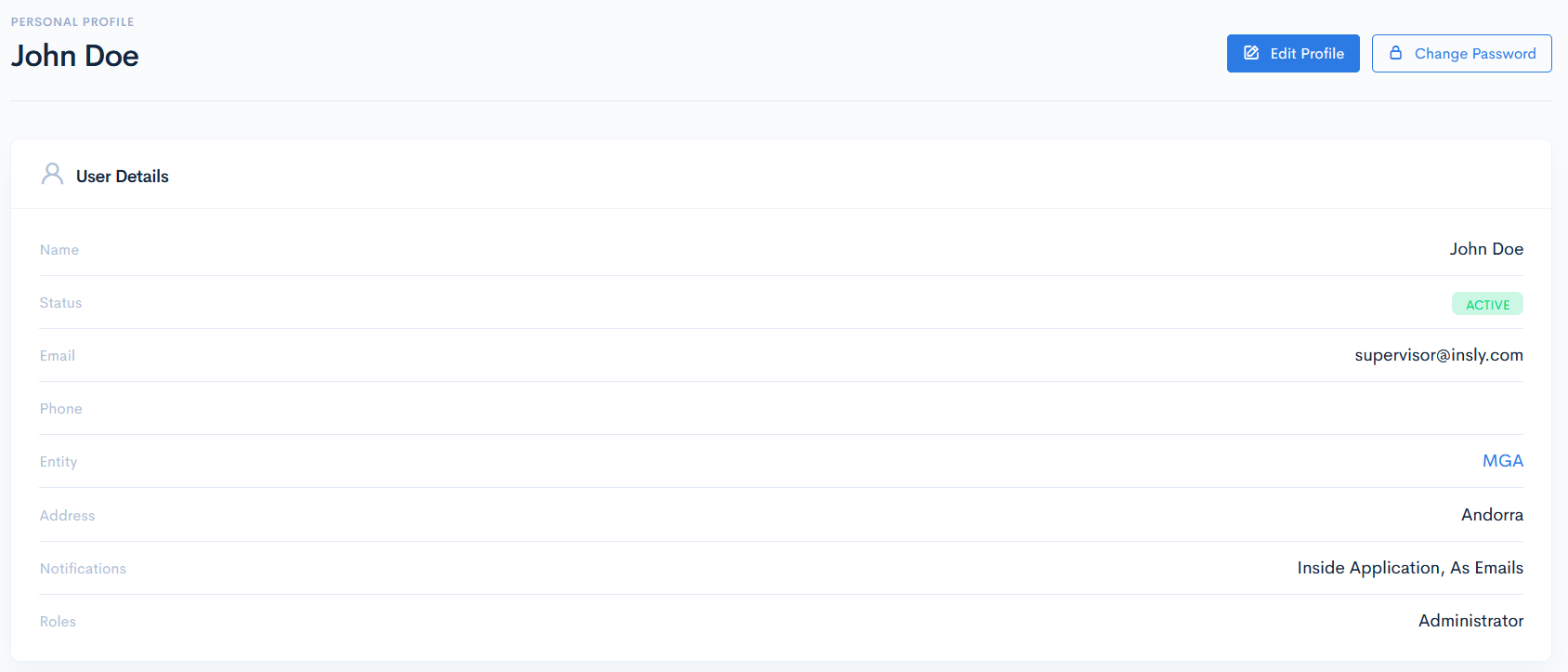
In the Personal Profile window, User Details section, you will find the following information:
| Name | Name of the user. |
| Status | Status of the user. Possible options:
|
| Email of the user. | |
| Phone | Telephone number of the user. |
| Entities | Responsible parties in a specific instance. For more information see Entities. |
| Address | Residential address of the user. |
| Notifications | How the notifications are received. Possible options:
|
| Roles | Role of the user. For more information see Roles. |
To edit these details, click the Edit Profile button. In the new window, you can edit all information, except for the entity, also, you can add some additional notes.
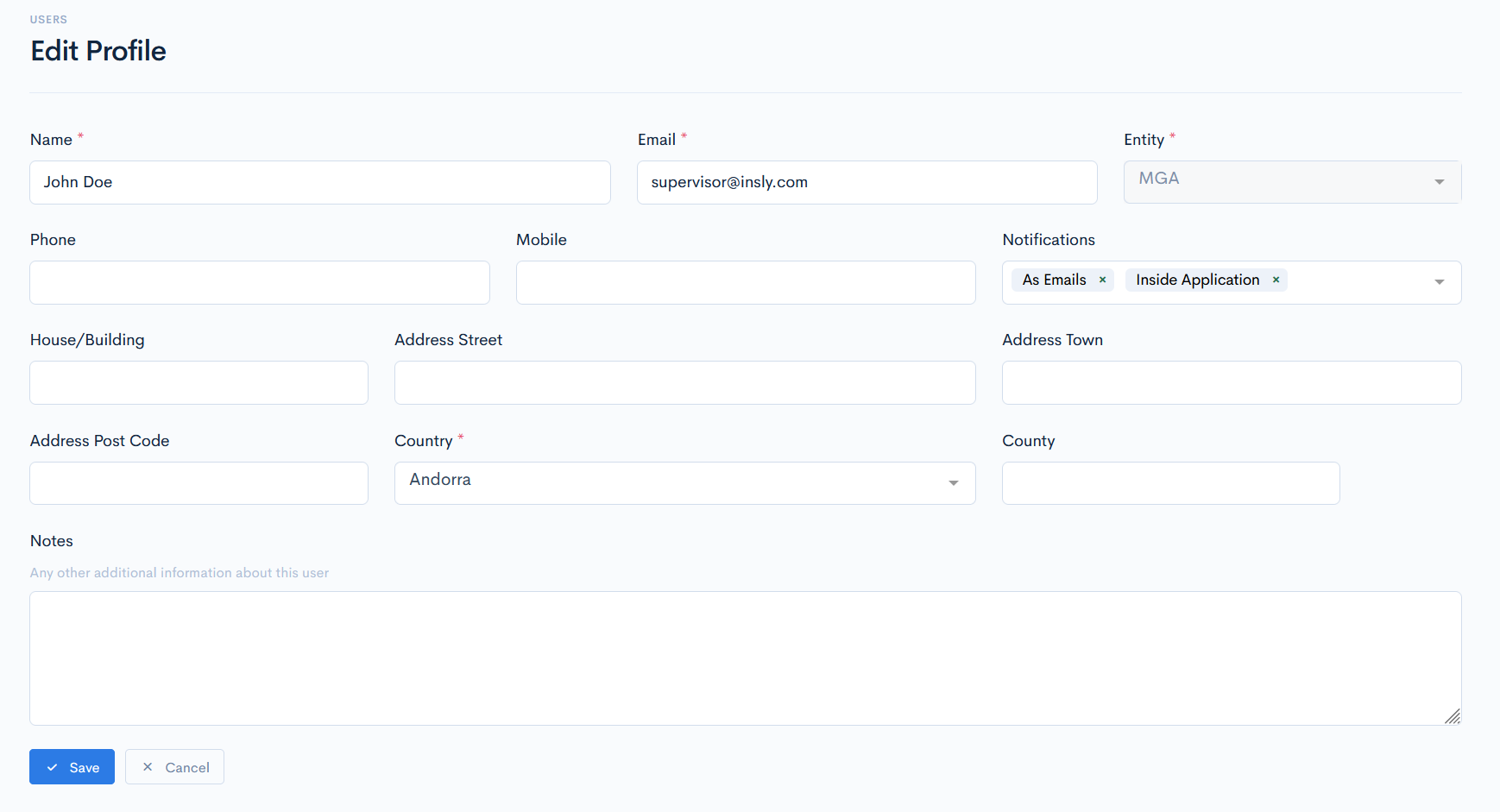
Click Save to save any changes.
System Data
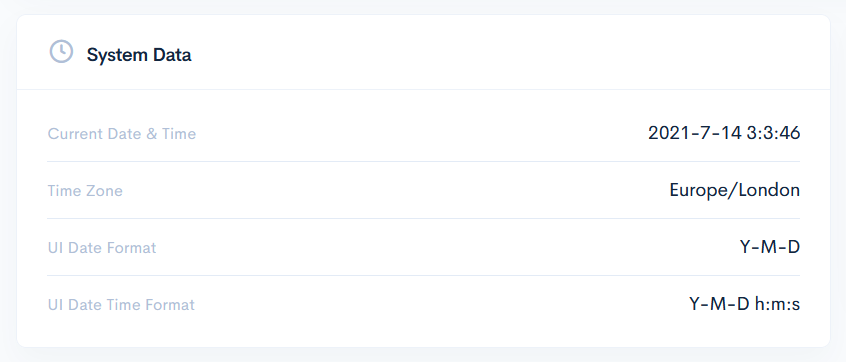
In the System Data section, the following information is displayed:
| Current Date & Time | Date and time in the YYYY-M-D H:MM:SS format. |
| Time Zone | Time zone of your location. |
| UI Date Format | User interface date format. Default option: Y-M-D. |
| UI Date Time Format | User interface date and time format. Default option: Y-M-D h:m:s. |
Password
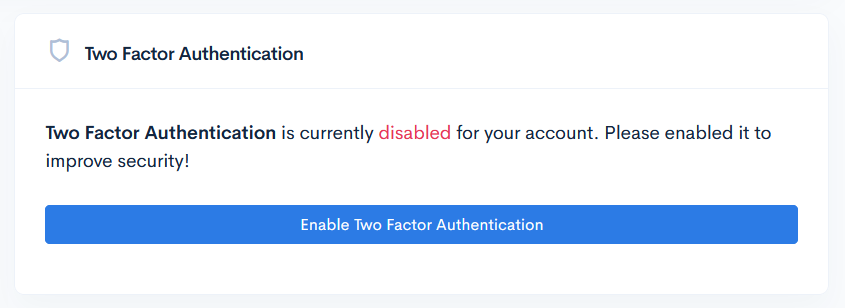
If you want to make your password more secure, you can use two-factor authentication. Click the Enable Two Factor Authentication button and scan the provided QR code.
{info.fa-info-circle} One of the following apps is required to scan the QR code: Google Authenticator, Duo Security, Auty, etc.
{info.fa-info-circle} This feature might not be available for some users. If you do not see this section, you can contact our product owners to enable it.
To change the password, click the Change Password button. Enter your new password in the fields and click Save.
{info.fa-info-circle} Your new password must be minimum of 8 characters, have at least one special character and one number.