Create Entity
Create via Main Window
To create a new entity, click the Create Entity button.
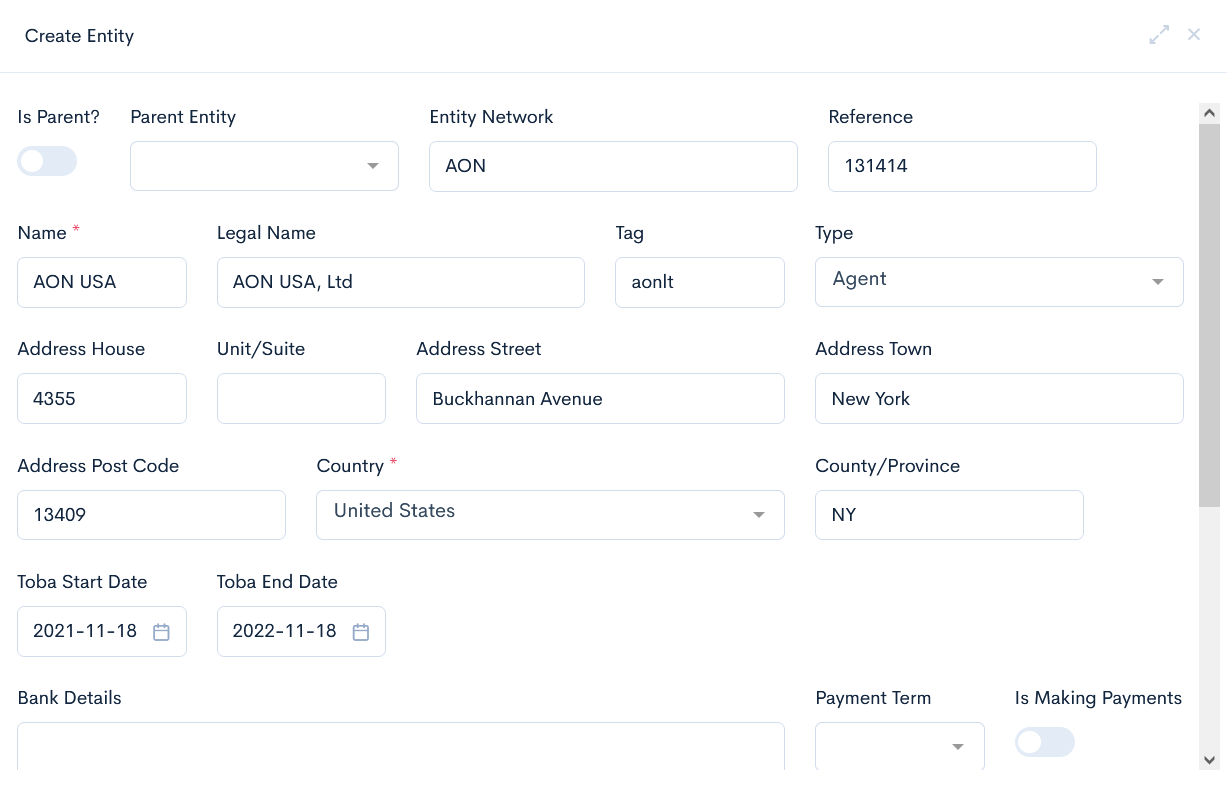
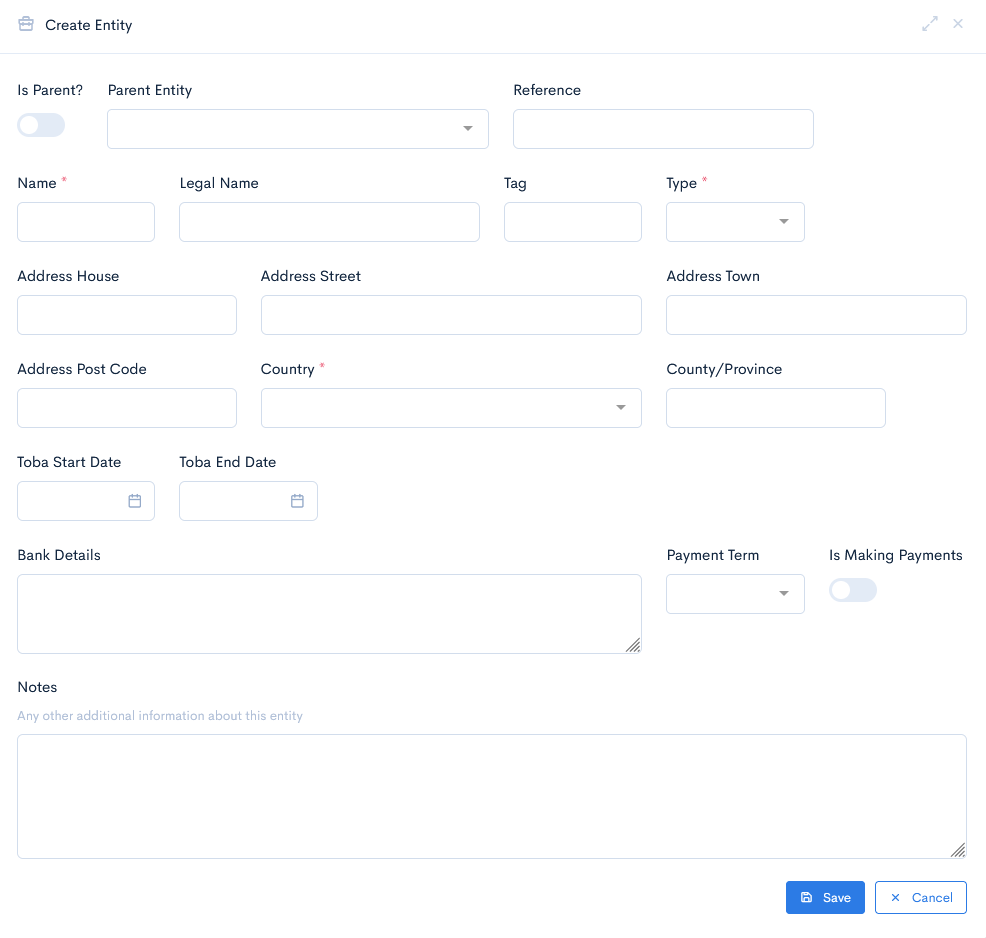
A new Create Entity window will appear. The following information should be filled in:
| Is Parent? | Toggle this button to make the entity as a parent. In this case you will be able to create subsidiaries. Only the Coverholder type can become a parent. |
| Parent Entity | Assign a coverholder, that will act as a parent. In this case that entity will become a parent automatically. |
| Entity Network | If the entity has the highest level in the company as "network", then enter the name. |
| Reference | Assign a unique reference number. |
| Name | Short entity name, type whatever will be comfortable for you. |
| Legal Name | Enter a full legal company name. |
| Tag | Unique identifier of an entity, which is used for value mapping in schemas. |
| Type | Select an entity type from the drop-down list. |
| Address House/Street/Town/Post Code | Enter entity address. |
| Country | Select entity country from the drop-down list. |
| County/Province | Enter entity county address. |
| Toba Start Date | Select the Terms of Business Agreement start date. |
| Toba End Date | Select the Terms of Business Agreement end date. |
| Bank Details | Enter bank details, if required. |
| Payment Term | Select the payment term from the drop-down list. This term defines in how many days the entity has to pay the invoice. Possible options:
|
| Is Making Payments | Toggle the button to set this entity to pay the payments. Usually this is assigned to the parent entity. |
| Notes | Enter any additional notes. |
Click Save. Now the entity will appear in the list.
{info.fa-info-circle} Fields marked with a red asterisk (*) are mandatory.
Create via Quote
{info.fa-info-circle} Entity via quote can only be created if the user has the entities.create.quick permission.
Another option to create an entity would be directly via quote. In this case the quote must have a field with a plus sign:
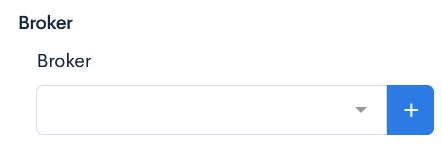
Click the + button and a new Create Entity window will appear. Fill in the details and click Save.
If you already have an entity set by default, click the x button to remove it from the field.
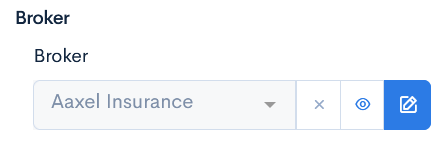
{info.fa-info-circle} If you click on the eye sign (), then you will be redirected to that entity page. Click on the edit sign () to edit the entity.