Overview
In the Invoices module, you can track and edit all the invoices in your system. An invoice is created in the Quotes module, this process is described in the Quote Management chapter, Transactions section.
Invoices List
To access the invoices, click Finances on the left sidebar and from the drop down menu select Invoices.
The invoices list has the following columns:
| Number | Invoice number, that is assigned automatically when creating the invoice. Note: You can sort the list by number in asceding or descending order, if you click on Number. |
| Client | Name of the client, which was entered into the invoice, or taken from the quote. Note: You can sort the list by client in asceding or descending order, if you click on Client. |
| Agent (Broker) | Agent name, which was selected in the invoice or in the quote. |
| Status | Status of the invoice. Possible options:
|
| Issue Date | Date, when the invoice was issued. Note: You can sort the list by issue date in asceding or descending order, if you click on Issue Date. |
| Due Date | Expected date of money receival. Note: The due date can be changed by admin (default is 15 days). Note: You can sort the list by due date in asceding or descending order, if you click on Due Date. |
| Total Amount | How much money should be payed. Note: You can sort the list by amount in asceding or descending order, if you click on Total Amount. |
| Created | Exact date and time of invoice creation. |
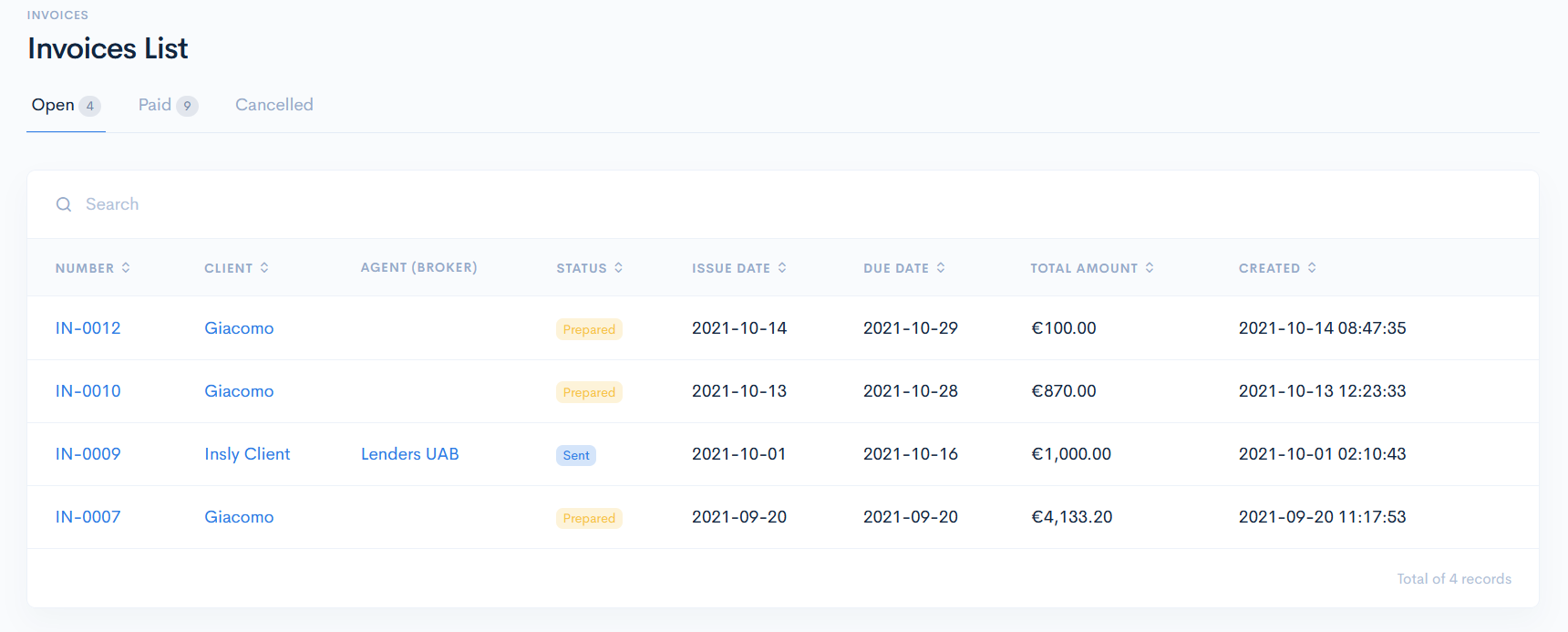
{info.fa-info-circle} You can filter out the list by number and client in the search bar.
Invoices Management
Invoice Details
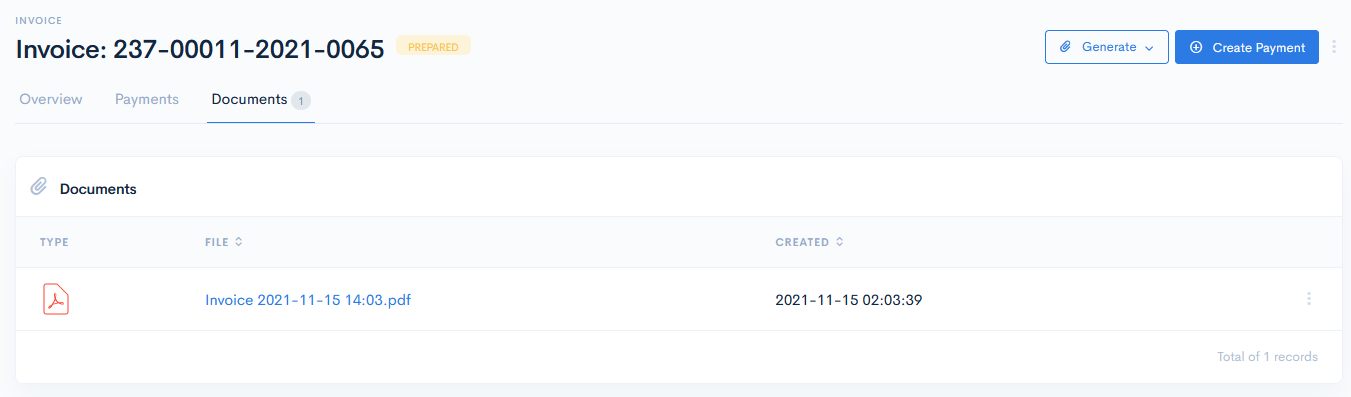
To see the invoice details, click on its number. You will be redirected to the invoice page, where you can check to whom it is issued (Invoiced To section), what the invoice consists of (Invoiced Lines section) and generate a .pdf document.
To mark the invoice as sent, click the Sent button, and Cancel to cancel the invoice.
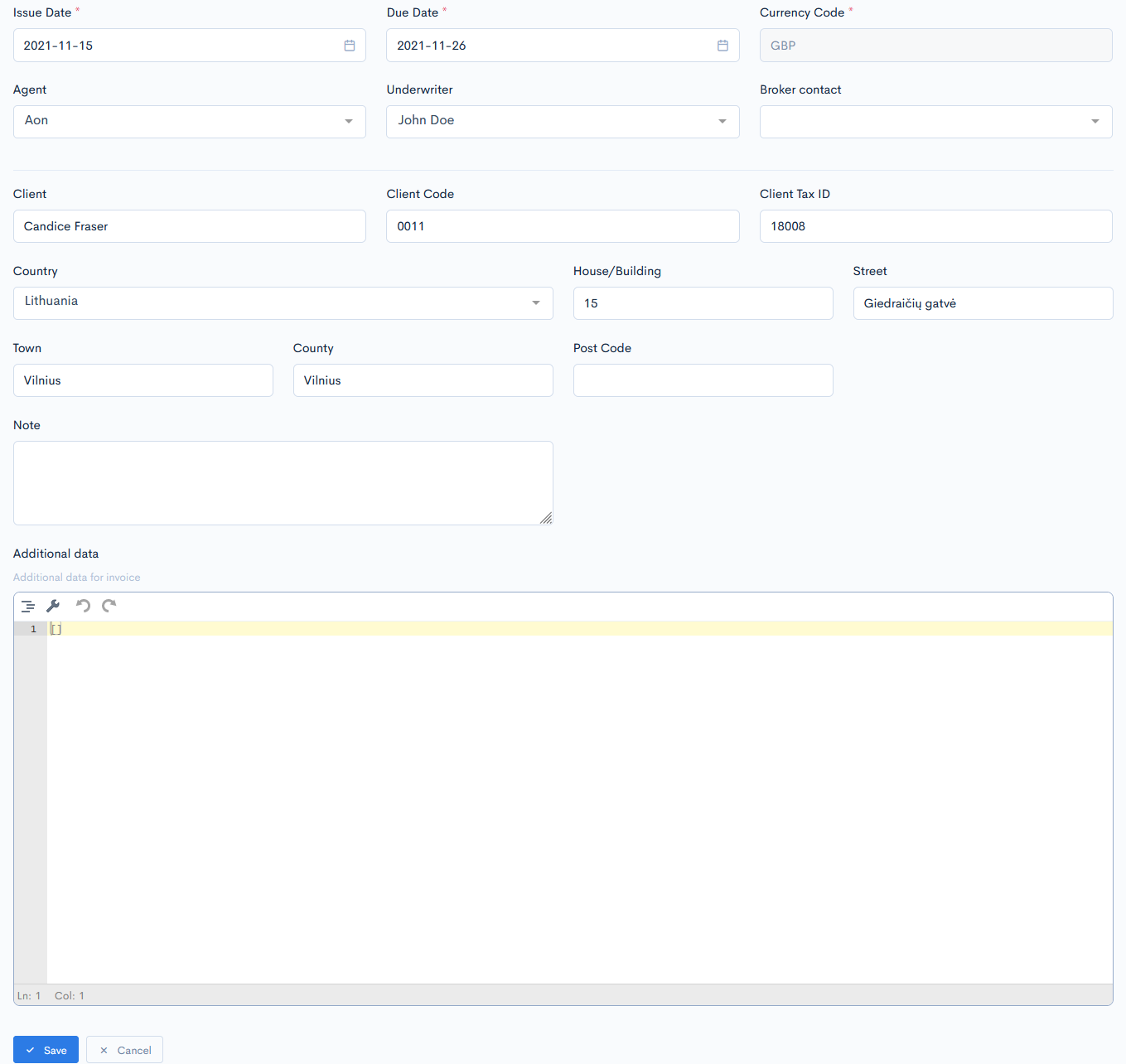
To change some invoice information, click the Edit button. In the new Edit Invoice window enter the required details and click Save.
Payments
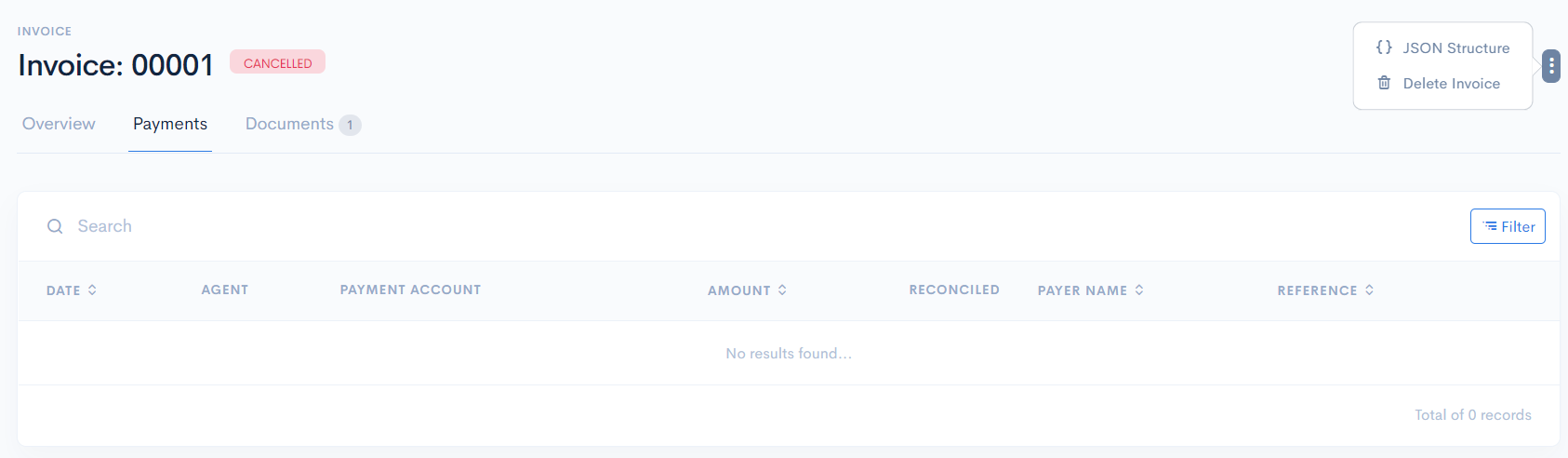
In the Payments section you can see all the payments related to that invoice. They automatically appear in the list after creating a payment in the receivable, which has an invoice, or if you reconcile a payment to the invoice.
The payments list has the following columns:
| Date | When the payment was created. Note: You can sort the list by date in asceding or descending order, if you click on Date. |
| Agent | Broker, assigned to quote. |
| Payment Account | From which account the payment was done. For more information, see the Payment Accounts chapter. |
| Amount | Paid amount. Note: You can sort the list by amount in asceding or descending order, if you click on Amount. |
| Reconciled | Amount, that is reconciled to the invoice. |
| Payer Name | Who did the payment. Note: You can sort the list by name in asceding or descending order, if you click on Payer Name. |
| Reference | Unique reference number, which was entered by you. |
Create Payment
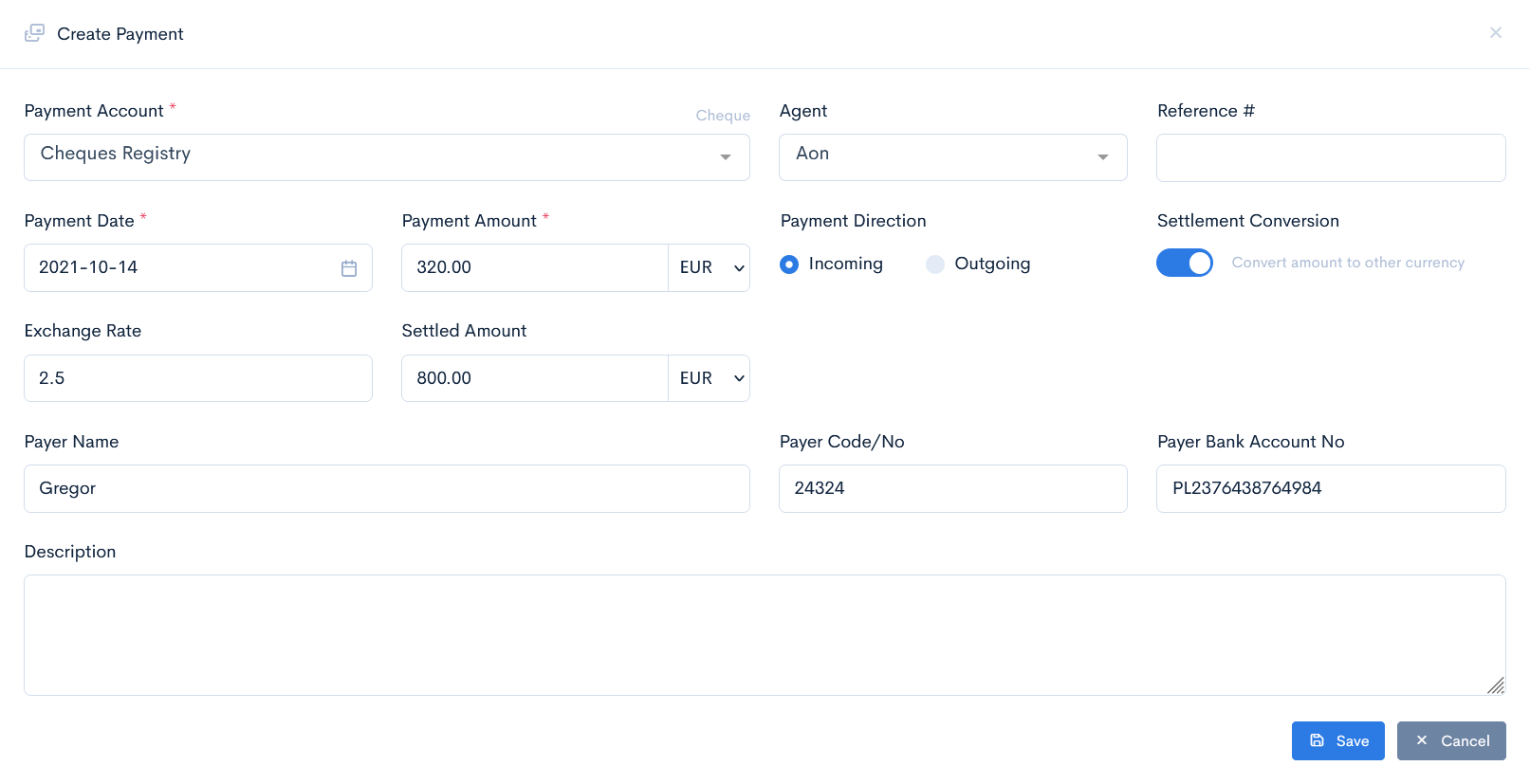
To register a new payment, click the Create Payment button. In the new window enter the required data and click Save.
{info.fa-info-circle} If you need to convert the payment amount into another currency, toggle the Settlement Conversion button. Enter the Exchange Rate and the system will convert the amount for you.
Documents
To create an invoice document, go to the Documents section, click Generate and select what exactly to generate: Credit Invoice, or Invoice. The document will be automatically generated into its defined template and will appear in the list. For more information on how to create a document template, see Templates.
To download the document, hover over the three dots on the right and click Download, or click on the document name.