Group Management
Add Category
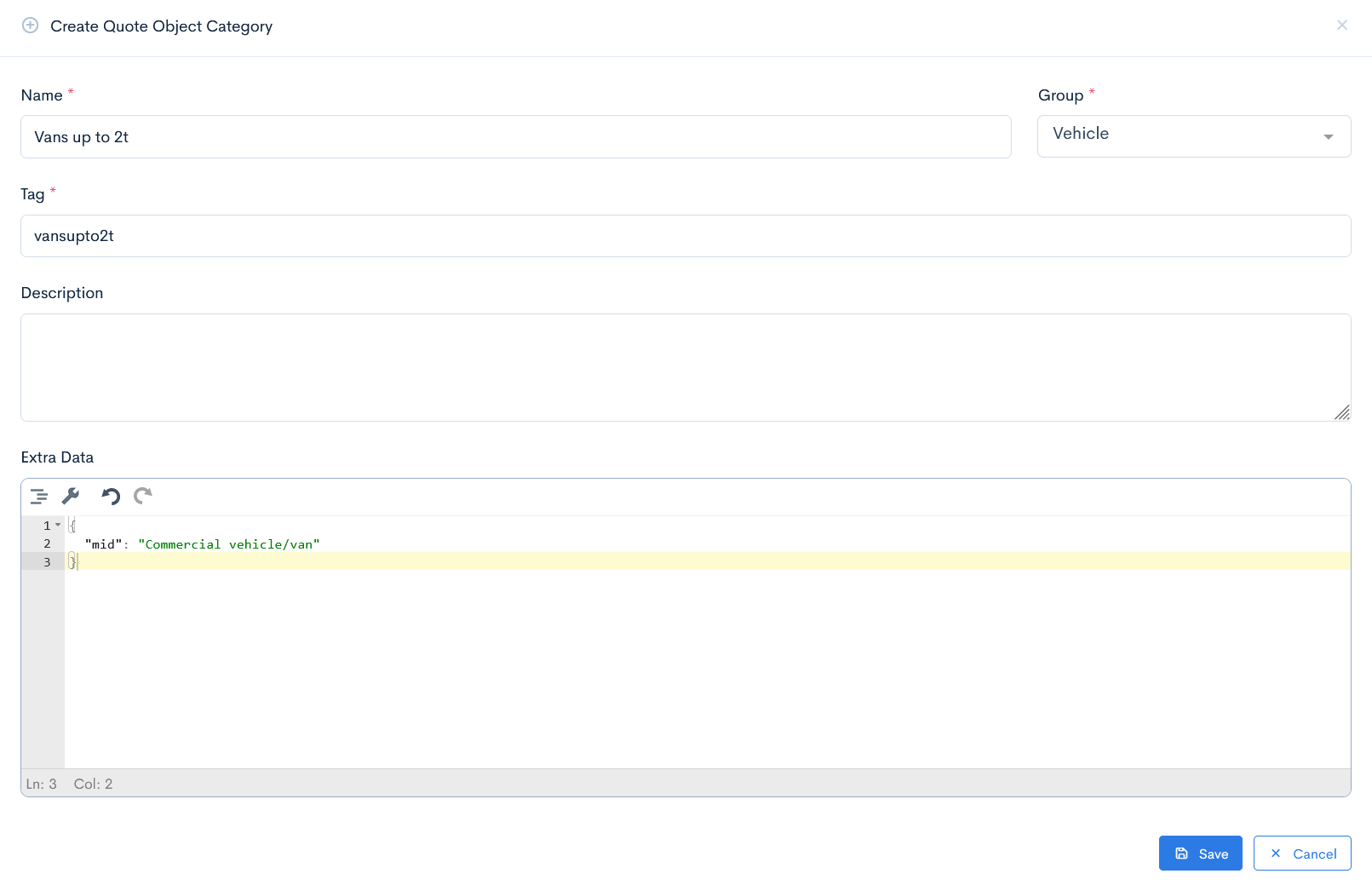
To add a category, hover over the three dots on the right of the group field and click Add Category. A new window Create Quote Object Category. Enter the Name, select which Group the category will belong to, enter Tag.
Additionally, you can enter some Extra Data. This is used in the reports generation. For example, you have a van up to 2t, and in the report you want it to be shown as Commercial vehicle/van. In this case you have to create a key, e.g. mid and assign a value: Commercial vehicle/van. Map this key value pair in the report.
Click Save.
Edit/Delete Category
To edit or delete the category, hover over the three dots on the right of the field and click Edit or Remove.

Edit Group
To edit the group, hover over the three dots on the right of the field and click Edit, or click on the name of the category.
{info.fa-info-circle} A group cannot be deleted.

If you clicked on the name, the group page will appear, where you can add some object parameters, which values will need to be entered when adding an object in a quote.
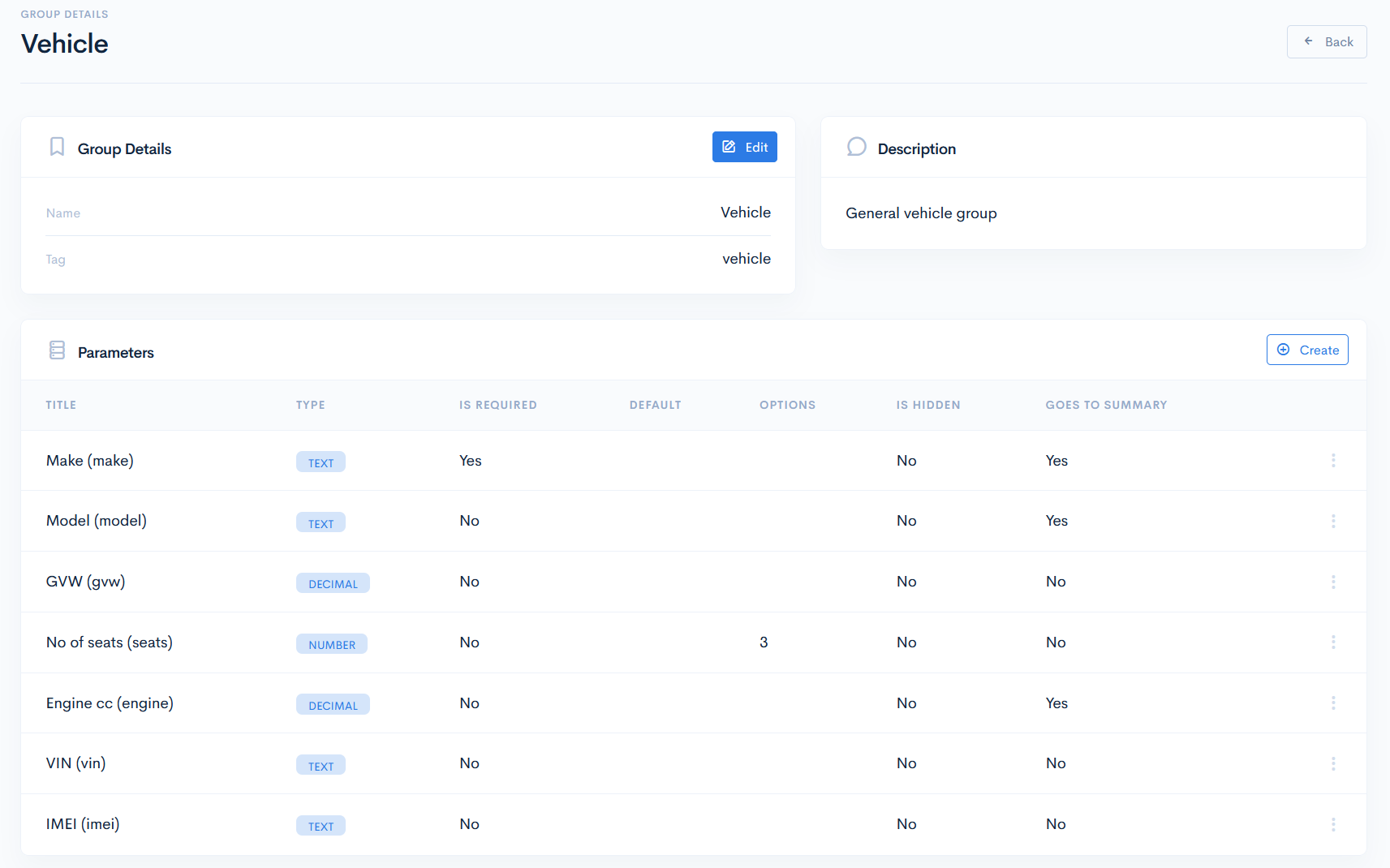
The Parameters list has the following columns:
| Title | Parameter name and a tag in the brackets. |
| Type | Type of the object parameter. Possible options:
|
| Is Required | Sets the parameter as mandatory. |
| Default | Defines the default value of the parameter. |
| Options | Enter the dataset tag, from which the selectable options will be taken. |
| Is Hidden | Defines the parameter as hidden or not when adding the object to the quote. |
| Goes to summary | Defines if the parameter goes to the Summary column of the objects list. |
Create Parameter
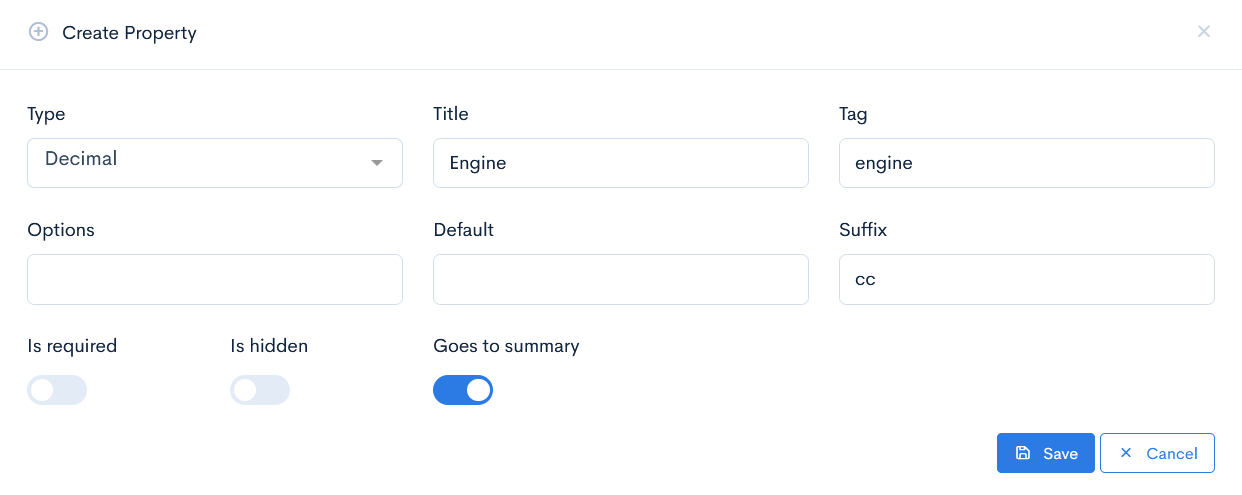
To create new parameter, click the Create button. Fill in the Type, Title, Tag fields, others are optional. The Suffix value is used to define the measurement unit (e.g. cc, kg, etc). Click Save.
Edit/Delete Parameter
To edit or delete the parameter, hover over the three dots on the right of the field and click Edit or Remove.
