Overview
The Policies module is used to track and manage all the policies created from quotes. Here you can renew a quote or make a Mid-Term Adjustment (MTA).
A policy is created automatically when a quote is issued. It has a different number from an issued quote and it is mentioned in the quote heading.

Vice versa, in the policy heading a quote number is mentioned, from which that policy is created.

Policies List
To access your policies, click Policies on the left sidebar.
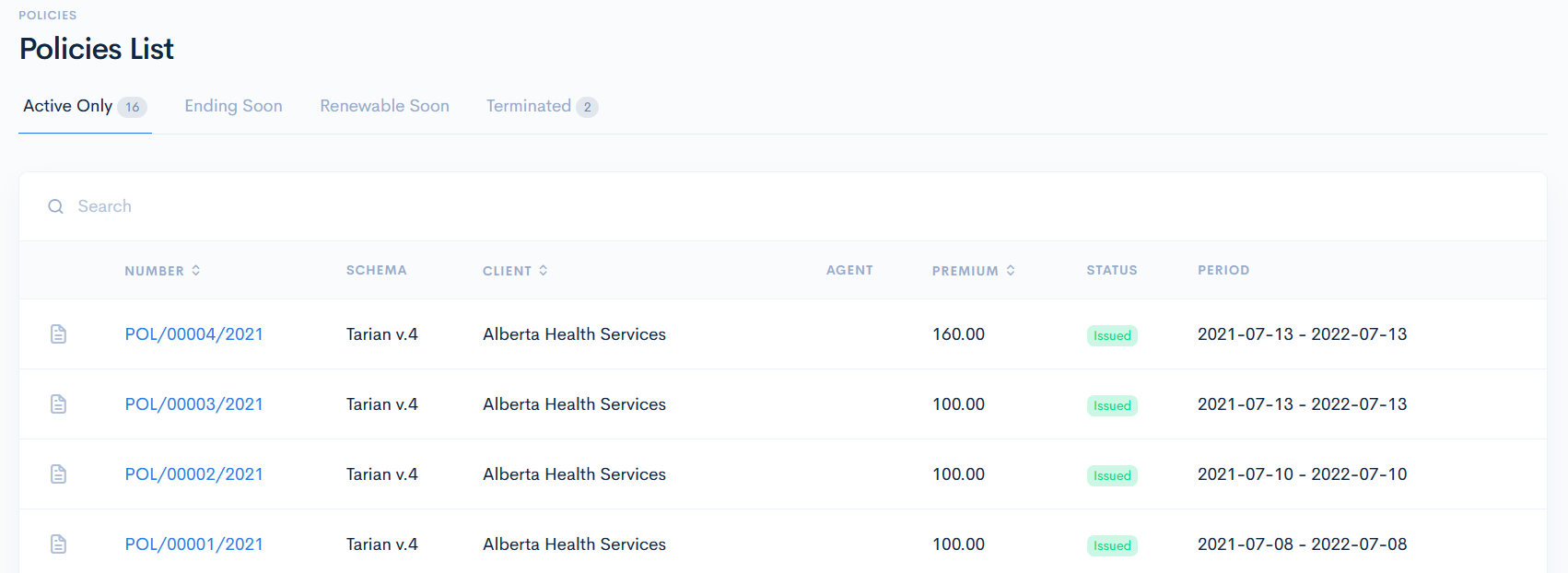
In the new window you will see the list of policies, which are grouped in the following sections:
- All
- Active - policies, that are issued and are still in force.
- Ending Soon - policies, which period will end soon.
- Renewable Soon
- Terminated - policies, which quote is terminated.
You can filter policies by these groups by clicking on the corresponding tab above the list. The adjacent number shows how many policies are in the group.
The policies list has the following columns:
| Number | Policy number, which is assigned automatically, when the policy is created (for more information, see Counters). Note: Click on the number to see the policy details. Note: You can sort the list by policy number in ascending or descending order, if you click on Number. |
| Schema | Base, on which a quote (therefore, and policy) is created. For more information on schemas, see the Schema chapter. |
| Client | Client name, to which a policy is related. Note: You can sort the list by the client in ascending or descending order, if you click on Client. |
| Agent | Broker, assigned to quote. |
| Premium | The amount of money that is paid out by the client to the insurance company. Note: You can sort the list by premium in ascending or descending order, if you click on Premium. |
| Status | Current status of the quote. Statuses naming vary from client to client and can be changed according to their needs. In general, all statuses fall into default groups of quotes. |
| Period | Interval of an active policy. |
{info.fa-info-circle} You can filter the list by typing into the search bar name or client.