Home / Document Template Management
Document Template Management
In this chapter we will discuss how to edit/delete templates, create new version and preview or download a template.
Edit/Delete Template
To edit or delete the template, hover over the three dots on the right of the field and click Edit or Remove, or click on the name of the category.

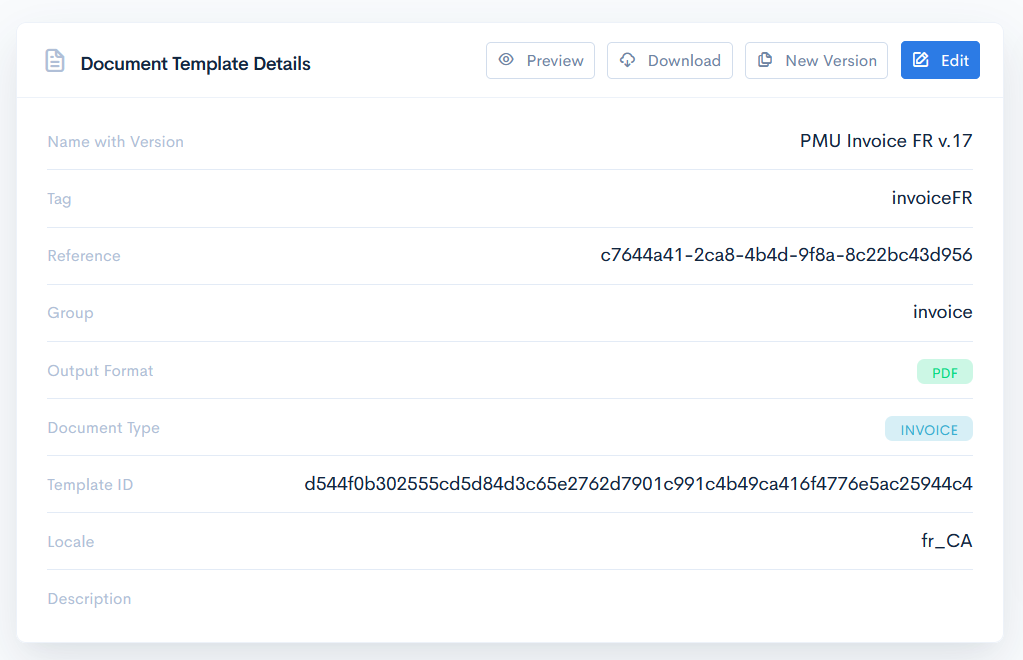
Document Template Details
To access the template details, click on its name.
In the Details section you can see all template details, versions, also preview, download the document and create a new version of it.
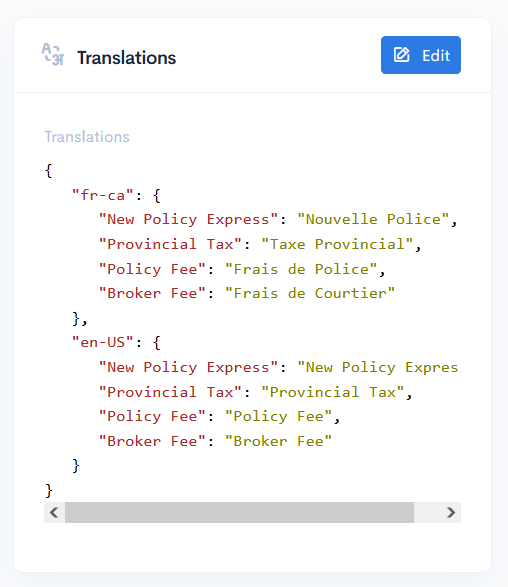
Translations
In the Translations block you can write several objects with translations to different langauges. When rendering the document, the Carbone application will select the appropriate langauge in accordance with defined Locale.
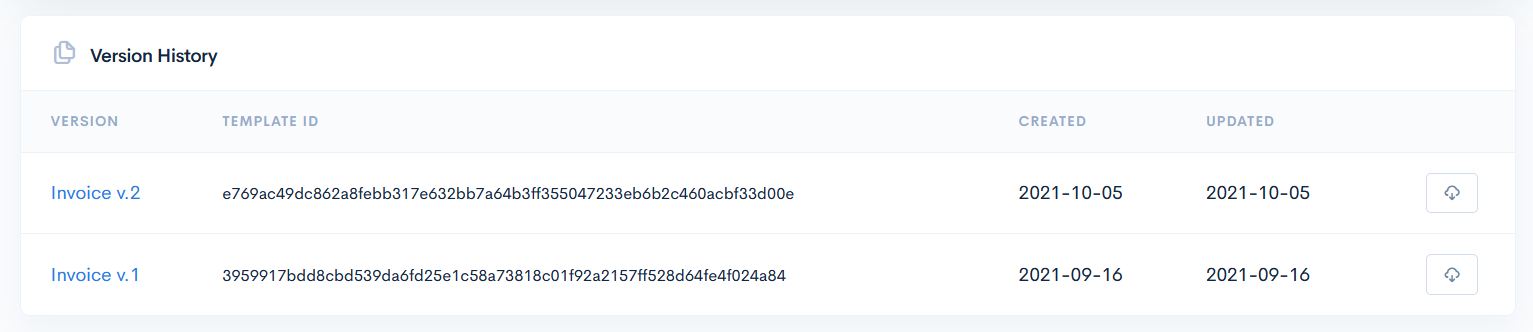
Version History
In the Version History you can see all versions possible previous versions of the template. The Created column tells when the template was created, and Updated - when the information was updated (e.g., description).
If you changed something in the file itself, then you need to create a new version in the system and upload the new file. Different template ID will be generated in this case. Click the New Version button and upload the file.
{info.fa-info-circle} When creating a new version, the uploaded file name can be different.
Preview
To preview how the document would look like when rendered, click the Preview button. In the new window select applicable Schema and the API integration, which will fill the template.
To upload the new template version, click the New Version button.
Download
To download the template, click the Download button. The usual browser download request will appear.
{info.fa-info-circle} It is also possible to download all the old template versions, by clicking the icon.
