Overview
In the Payments module, you can track and reconcile all the payments, that were transferred to you. A payment is created in the Quotes module, this process is described in the Quote Management chapter, Transactions section.
Payments List
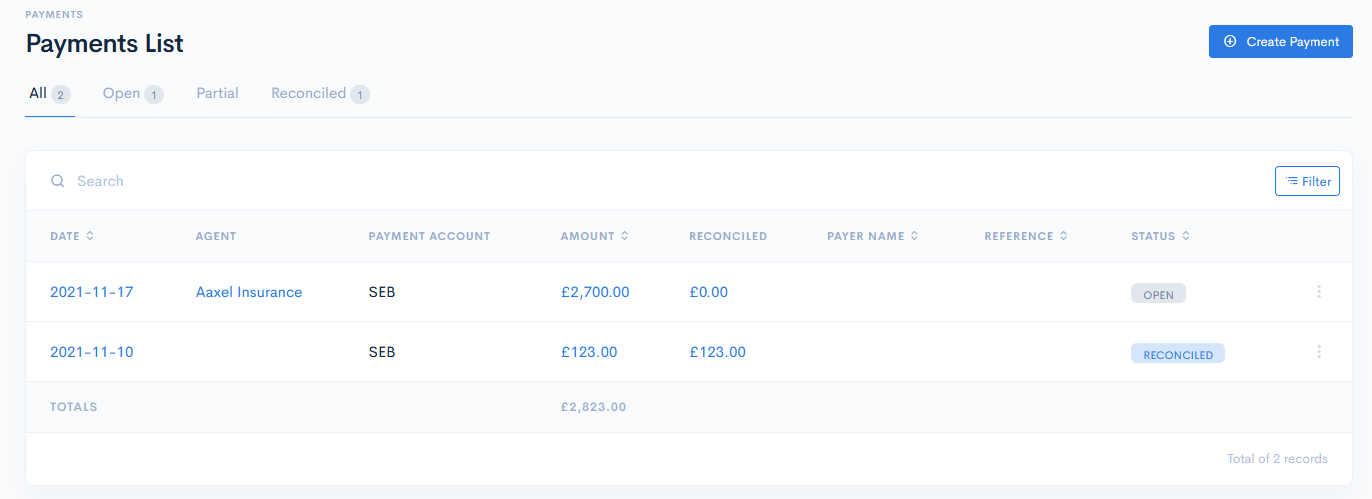
To access the payments, click Finances on the left sidebar and from the drop down menu select Payments. In the new window you will see the list of payments, which are divided into the following groups:
- Open - the payments have just been created.
- Reconciled - the payments are mapped to the receivables.
- All - payments with all statuses.
The invoices list has the following columns:
| Date | Date of money receival. Note: You can sort the list by date in asceding or descending order, if you click on Payment Date. |
| Agent | Responsible person. |
| Payment Account | Account, where the money were transferred. |
| Amount | Amount of paid money. Note: You can sort the list by money amount in asceding or descending order, if you click on Amount. |
| Reconciled | How much money is mapped from payment to the receivable. |
| Payer Name | Person, or company who did the payment. Note: You can sort the list by sender in asceding or descending order, if you click on Sender. |
| Reference | Reference number, entered by you in the payment. Note: You can sort the list by reference in asceding or descending order, if you click on Reference. |
| Status | Payment status. Possible options:
|
| Totals | Show how much money is hanging and not reconciled. |
{info.fa-info-circle} You can filter out the list by date range, agent and account in the search bar if you click the Filter button.
Create Payment
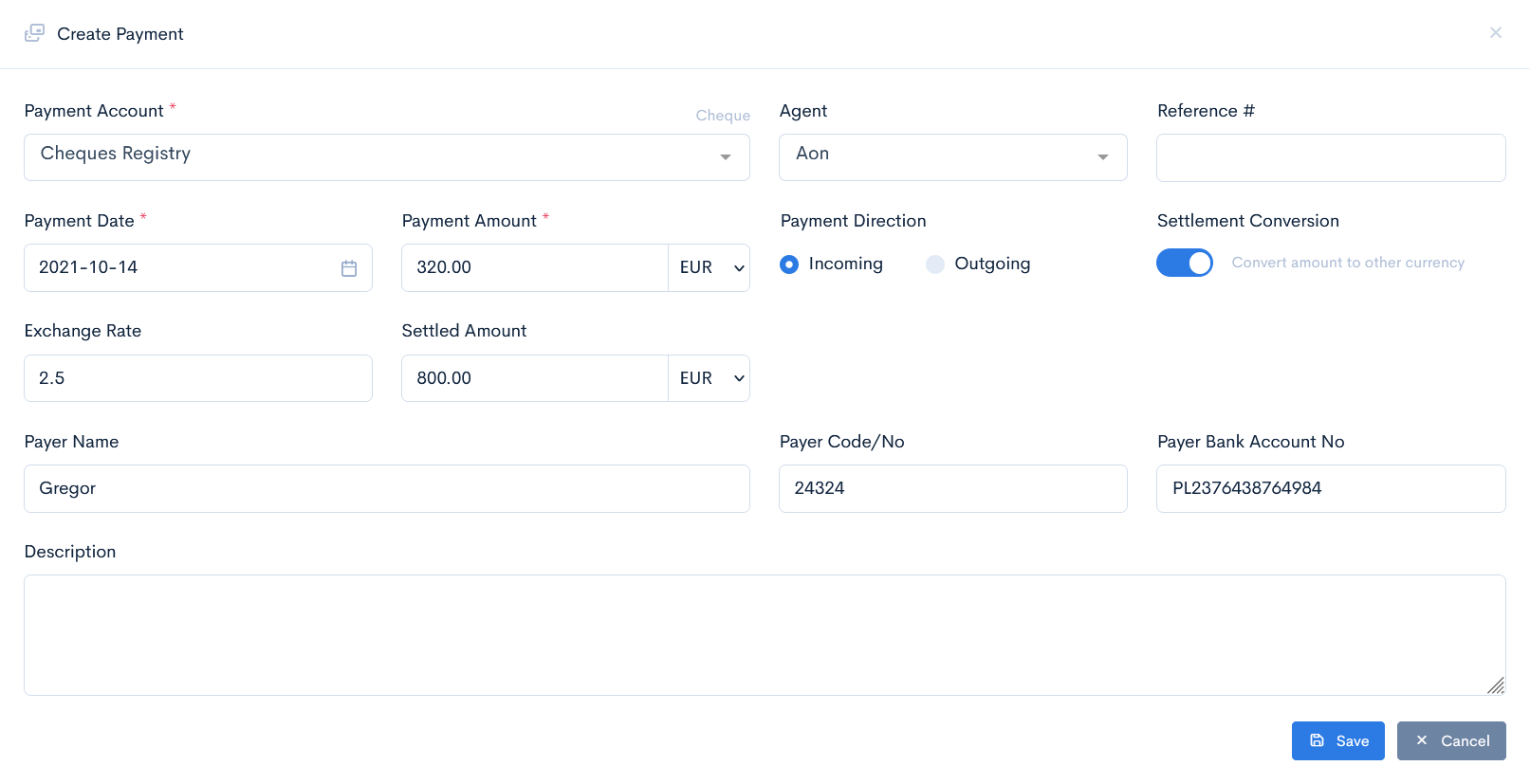
Payment can be created through the transactions in a quote and the invoices (in this case it is instantly mapped to the receivable and will appear in the payments list), or through the payments module (in this case you will have to map the payment to the receivable).
To create a payment, click the Create Payment button. In the new window enter the required data and click Save.
{info.fa-info-circle} If you need to convert the payment amount into another currency, toggle the Settlement Conversion button. Enter the Exchange Rate and the system will convert the amount for you.
Reconcile
To map the payment to the receivable, hover over the three dots on the right of the field and click Reconcile, or click on the payment amount.

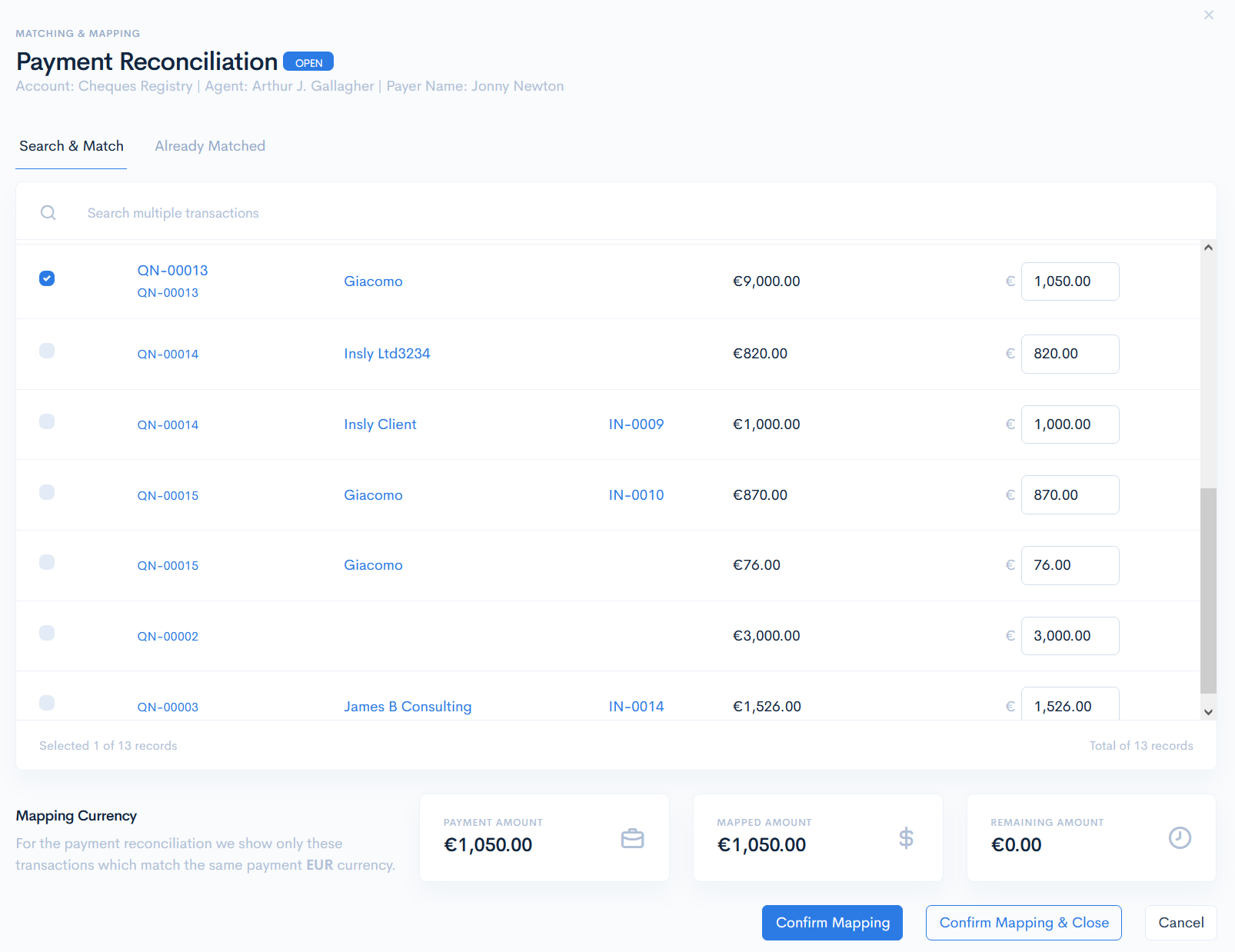
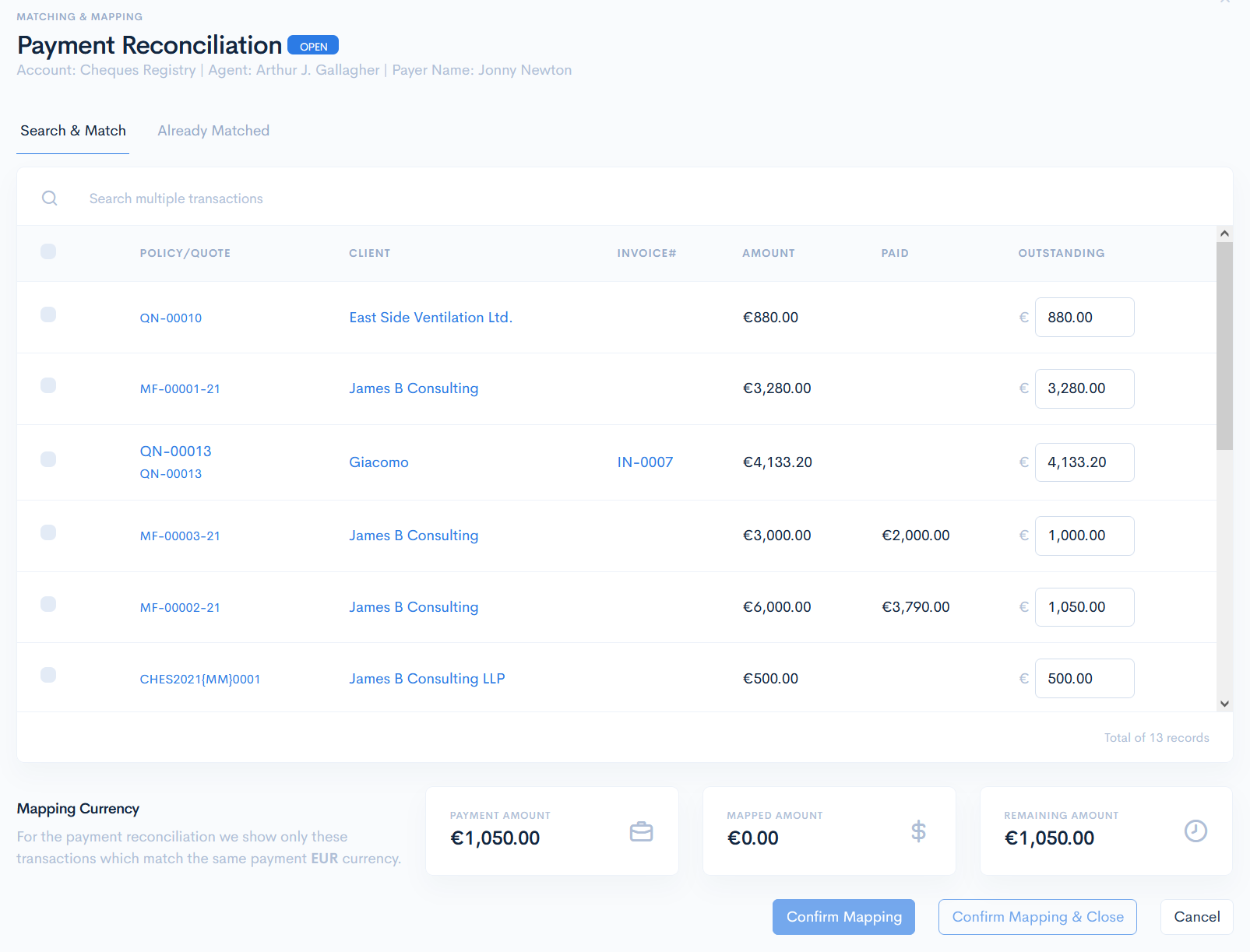
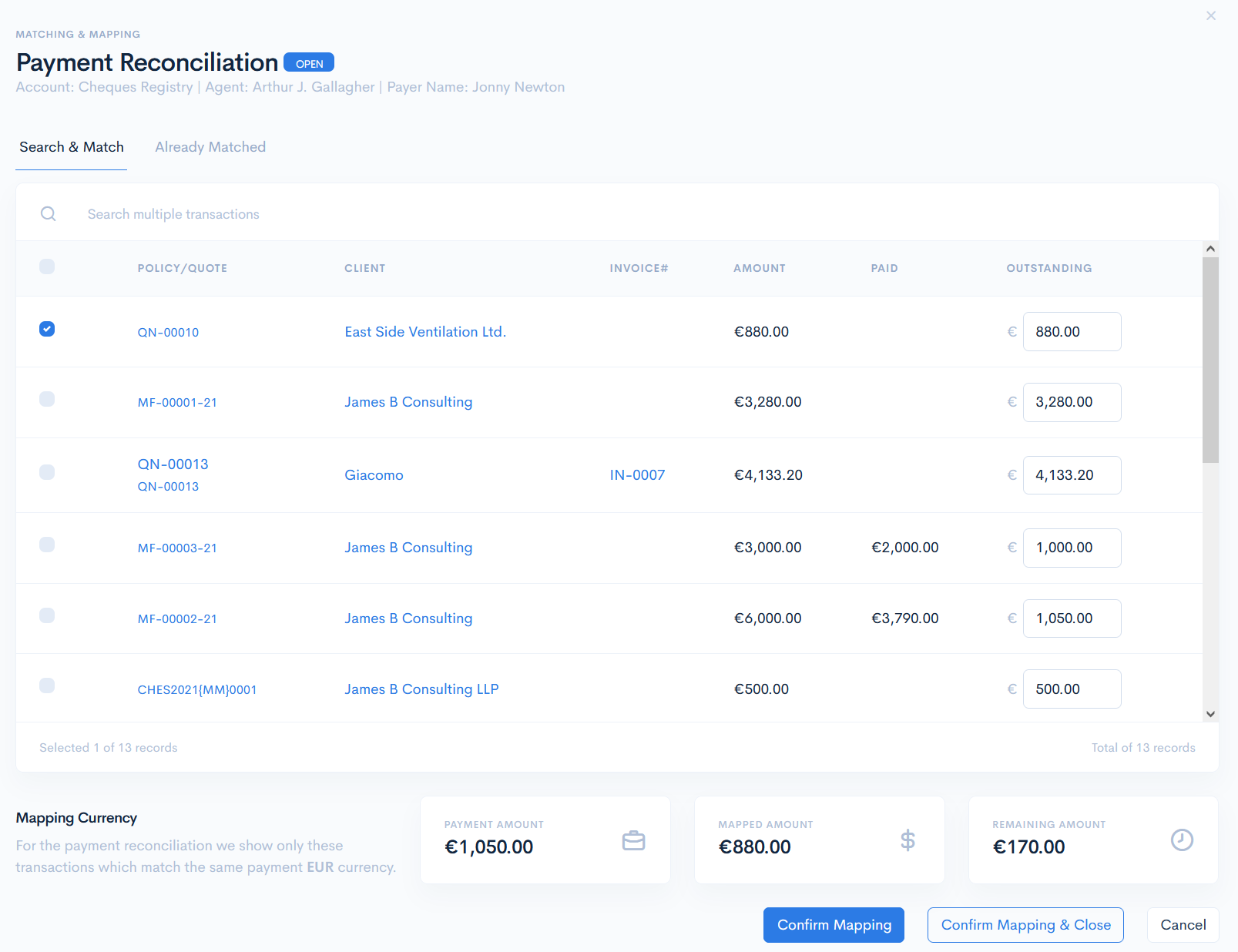
In the new Payment Reconciliation window you will find the list of all the possible receivables without any mapped payments (Search & Match tab) and receivables, to which the current payment is mapped (Already Matched).
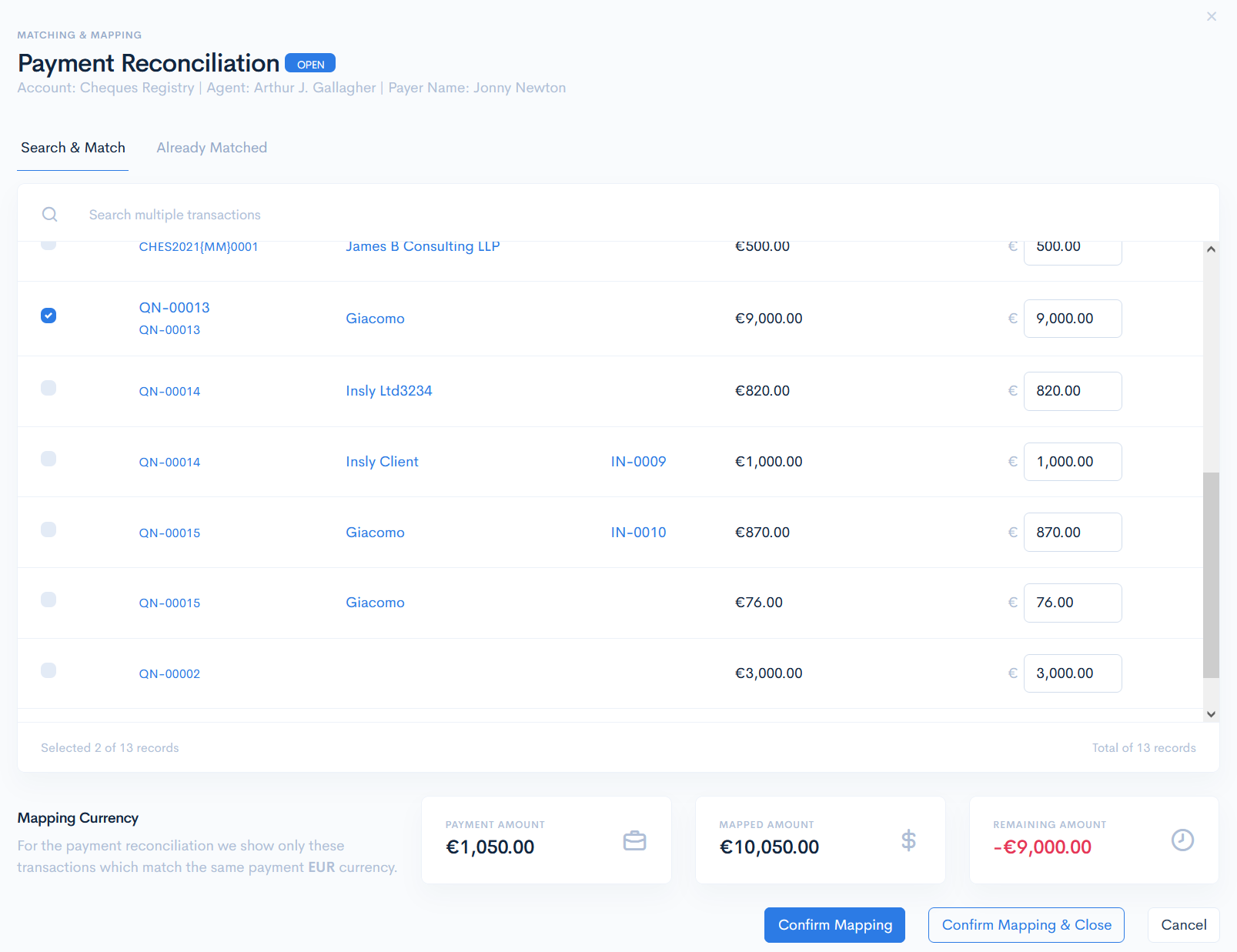
The list contains link to the policy and invoice (if there is such), client name, receivable amount (each receivable is displayed on the separate line), how much is already paid and the outstanding sum means how much money is there to be covered (you can enter your own amount, if the payment amount is less then outstanding).
At the bottom of the page you will see three boxes:
- Payment Amount - the amount to be mapped.
- Mapped Amount - at first this amount is equal 0.00, but if you tick the whichever receivable box, then its amount will appear in Mapped Amount. This money will be deducted from Payment Amount.
- Remaining Amount - at first it will be equal to the amount in the Payment Amount box, but after mapping the payment, the deducted sum will appear. This will have to be reconciled once more later. If the receivable amount is bigger than payment, then the remaining amount will be in red color.
Click the Confirm Mapping & Close button.
The Payment Reconciliation window before reconcilliation:
The Payment Reconciliation window when a receivable is selected for mapping:
The Payment Reconciliation window when a receivable is selected for mapping, but the amount is bigger:
The Payment Reconciliation window when a receivable is selected for mapping, and the outstanding amount is corrected to match the payment: