Create Schema
There are two ways in creating schema: manually, or from Blueprint.
Create Schema from Blueprint
There is a possibility to fastly import an already created typical product schema from the Blueprint library. For more information on this application click here.
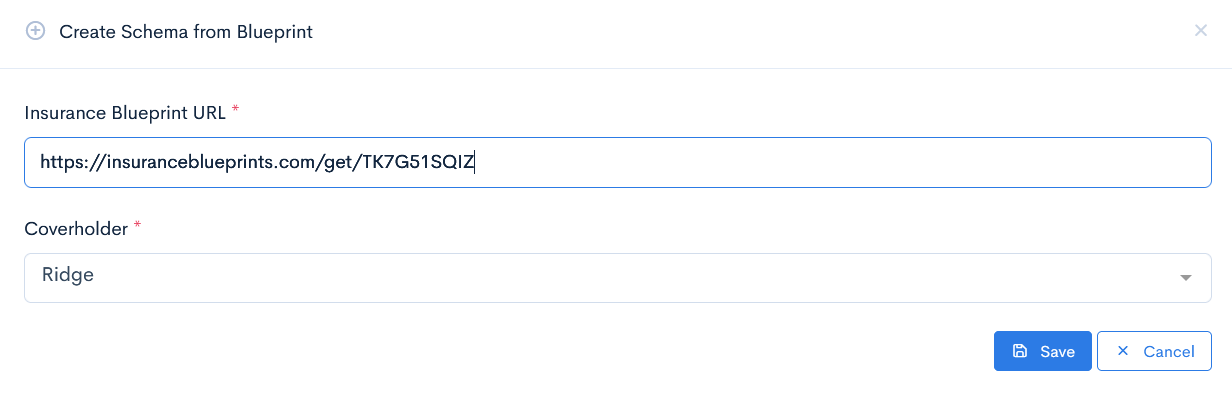
To import a schema, click the Create Schema from Blueprint button. In the new window enter Insurance Blueprint URL and select an applicable Coverholder. Click Save.
Create Schema Manually
To create a new schema, click the Create Schema button.
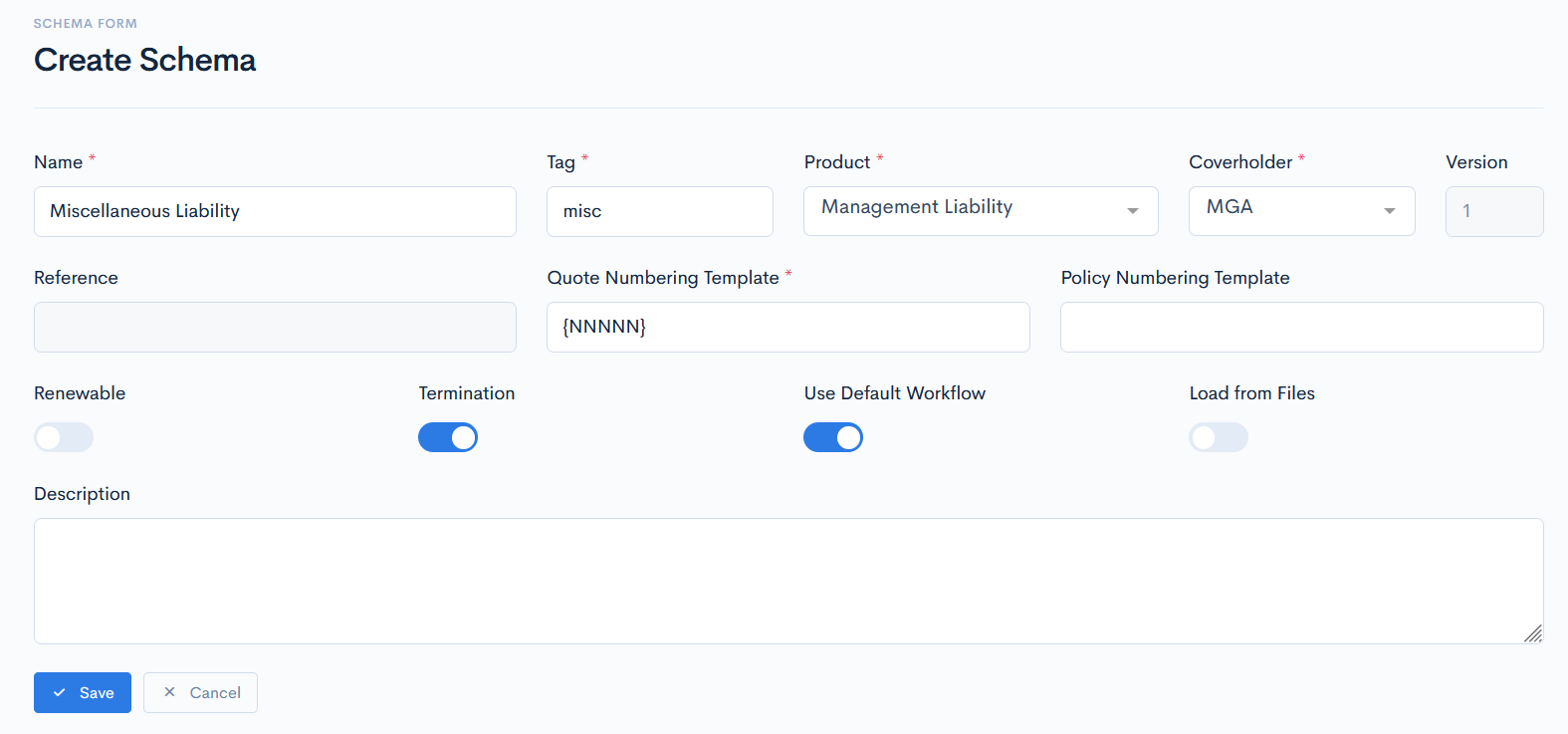
A new window with a schema form will appear. The following basic info should be defined:
| Name | Enter the name of the schema. |
| Tag | Schema tag, that is used by system to map schemas with its quotes. |
| Product | From the drop-down list select the product, which your schema is dedicated to. |
| Coverholder | Select from applicable coverholders (owner of the schema). |
| Version | The version of the schema, which is assigned automatically by the system. This field cannot be edited. Default value: 1. |
| Reference | The unique reference record, which is created automatically by the system. This field cannot be edited. |
| Quote Numbering Template | Define the pattern, by which quotes will be numbered after the schema is created. For more information on quote numbering, see the Quote and Policy Numbering Logic section. Default value: {NNNNN}, which will be converted to 00001. |
| Policy Numbering Template | Define the pattern, by which policies will be numbered after the quote is issued. For more information on policy numbering, see the Quote and Policy Numbering Logic section. Note: If you leave the field empty, policy will be numbered exactly as its quote. |
| Renewable | This functionality is not used right now. |
| Termination | Quotes, based on this schema, will have the termination possibility. |
| Use Default Workflow | If this option is enabled, then the default workflow will be used. If you turn off this feature, then in the schema details page, you will be able to select from the created workflows. Default value: Enabled. |
| Load From Files | Toggle the button, if you want to load a whole schema configuration from files. If you turn on this feature, then a field will appear, where you will have to define the files path. Default value: Disabled. |
| Description | Enter any additional useful comments. |
Click Save.
{info.fa-info-circle} Fields marked with a red asterisk (*) are mandatory.
Quote and Policy Numbering Logic
Quotes
By default, quote numbering template is {NNNNN}. This does not mean, that you have to stick to the default template, you can create your own. The quote number can be made with various letters and numbers, and the latter will increment in the Q&B system counter.
For the number to be dynamic, use the following elements:
- {NNNNN} - Every N will convert into the number. The first digits are 0, and the last digit is incremented in the each newly created schema (e.g. 00001, 00002, etc.)
- {YYYY} - Current year. Also, you can write as {YY} - and the two last digits of year will be used.
- {MM} - Current month.
- {VVV} - Current quote version. If the quote version consists of one digit, then other left front V's will convert to 0 (e.g. 001).
- {B} - Binder number. Just enter this one letter, and the system will fill in the binder code from quote.
- {A} - Agent reference code. Just enter this one letter, and the system will fill in the agent code from quote.
All other possible letters and their combinations will reimain unchanged.
Examples:
CO-{NNNN}/{YYYY} - this template will convert to CO-0001/2021, CO-0002/2021, etc.
Pr12-{B}-{NNNNNN}_{A} - this template will convert to Pr12-BL34879-000001_Aon, Pr12-BL34879-000002_Aon, etc.
Policies
Policies numbering logic is the same as quotes. If you will not enter the policy template when creating a schema, then the policy number will be exactly the same, as its quote.